{"id":"031e631d-3e7d-4a1f-8a0b-fe014d6a7083","entityType":"agent","slug":"clawhub-hith3sh-microsoft-excel-spreadsheets","name":"Microsoft Excel","canonicalUrl":"https://www.xpersona.co/agent/clawhub-hith3sh-microsoft-excel-spreadsheets","canonicalPath":"/agent/clawhub-hith3sh-microsoft-excel-spreadsheets","generatedAt":"2026-10-09T17:48:59.512Z","source":"CLAWHUB","claimStatus":"UNCLAIMED","verificationTier":"NONE","summary":{"evidence":{"source":"editorial-content","verified":true,"confidence":"high","updatedAt":"2026-10-09T09:35:34.137Z","emptyReason":null},"description":"Microsoft Excel API integration with managed OAuth. Read and write Excel workbooks, worksheets, ranges, tables, and charts stored in OneDrive. Use this skill... Skill: Microsoft Excel Owner: hith3sh Summary: Microsoft Excel API integration with managed OAuth. Read and write Excel workbooks, worksheets, ranges, tables, and charts stored in OneDrive. Use this skill... Tags: latest:1.0.5 Version history: v1.0.5 | 2026-06-09T07:13:17.389Z | user Add UTM attribution tags (utm_source=clawhub) to ClawLink branding links so visits from this skill page are tracked as a distinct traff","descriptionLabel":"Technical summary","evidenceSummary":"Capability contract not published. No trust telemetry is available yet. 3.1K downloads reported by the source. Last updated 10/9/2026.","installCommand":"clawhub skill install s173vws87a7ss71xf9rq53k5gd8568kv:microsoft-excel-spreadsheets","sourceUrl":"https://clawhub.ai/hith3sh/microsoft-excel-spreadsheets","homepage":"https://clawhub.ai/hith3sh/skills/microsoft-excel-spreadsheets","primaryLinks":[{"label":"View on ClawHub","url":"https://clawhub.ai/hith3sh/microsoft-excel-spreadsheets","kind":"source"},{"label":"Homepage","url":"https://clawhub.ai/hith3sh/skills/microsoft-excel-spreadsheets","kind":"homepage"}],"safetyScore":84,"overallRank":62,"popularityScore":70,"trustScore":null,"claimedByName":null,"isOwner":false,"seoDescription":"Microsoft Excel API integration with managed OAuth. Read and write Excel workbooks, worksheets, ranges, tables, and charts stored in OneDrive. Use this skill..."},"coverage":{"evidence":{"source":"public-profile","verified":false,"confidence":"medium","updatedAt":"2026-10-09T09:35:34.137Z","emptyReason":null},"protocols":[{"protocol":"OPENCLEW","label":"OpenClaw","status":"self-declared","notes":"Declared in the public agent profile."}],"capabilities":[],"verifiedCount":0,"selfDeclaredCount":1,"capabilityMatrix":{"rows":[{"key":"OPENCLEW","type":"protocol","support":"unknown","confidenceSource":"profile","notes":"Listed on profile"}],"flattenedTokens":"protocol:OPENCLEW|unknown|profile"}},"adoption":{"evidence":{"source":"CLAWHUB","verified":false,"confidence":"medium","updatedAt":"2026-10-09T09:35:34.137Z","emptyReason":null},"stars":null,"forks":null,"downloads":3131,"packageName":null,"latestVersion":"1.0.5","tractionLabel":"3.1K downloads"},"release":{"evidence":{"source":"CLAWHUB","verified":false,"confidence":"medium","updatedAt":"2026-10-09T09:35:34.137Z","emptyReason":null},"lastUpdatedAt":"2026-10-09T09:35:34.137Z","lastCrawledAt":"2026-10-09T09:35:34.137Z","lastIndexedAt":null,"nextCrawlAt":"2026-10-10T09:35:34.137Z","lastVerifiedAt":null,"highlights":[{"version":"1.0.5","createdAt":"2026-06-09T07:13:17.389Z","changelog":"Add UTM attribution tags (utm_source=clawhub) to ClawLink branding links so visits from this skill page are tracked as a distinct traffic source.","fileCount":3,"zipByteSize":7260},{"version":"1.0.4","createdAt":"2026-06-09T04:59:51.557Z","changelog":"- Removed the file skill-card.md. - No other changes to skill features or documentation.","fileCount":3,"zipByteSize":7055},{"version":"1.0.1","createdAt":"2026-06-08T16:39:34.841Z","changelog":"- Added a Microsoft Excel logo image at the top of the main documentation for clearer branding. - Removed the redundant skill-card.md file. - No feature or API changes; documentation only.","fileCount":3,"zipByteSize":7124},{"version":"0.3.2","createdAt":"2026-06-07T10:49:27.199Z","changelog":"Fixed footer logo: using link_logo_black_small.png (200px) instead of large clawlink-512.png.","fileCount":3,"zipByteSize":7208},{"version":"0.3.1","createdAt":"2026-06-07T10:47:35.643Z","changelog":"Restored Excel-specific GIF for Step 3. Excel skill has its own app connection GIF.","fileCount":3,"zipByteSize":7159},{"version":"0.3.0","createdAt":"2026-06-07T10:46:16.034Z","changelog":"Removed app-specific GIF from Step 3. Step 3 is now text-only placeholder as app-specific GIFs will be added by the user manually per skill.","fileCount":3,"zipByteSize":7318},{"version":"0.2.9","createdAt":"2026-06-07T10:44:01.770Z","changelog":"Added ClawLink logo footer. Finalized 3-step GIF template with shared install/pair GIFs and app-specific connect GIF.","fileCount":3,"zipByteSize":7099},{"version":"0.2.8","createdAt":"2026-06-07T10:40:01.992Z","changelog":"Updated Step 1 GIF to initialstep_1.gif (740x480) for better resolution and equal display with other steps.","fileCount":3,"zipByteSize":7036}]},"execution":{"evidence":{"source":"CLAWHUB","verified":false,"confidence":"low","updatedAt":null,"emptyReason":"No published capability contract is available yet."},"installCommand":"clawhub skill install s173vws87a7ss71xf9rq53k5gd8568kv:microsoft-excel-spreadsheets","setupComplexity":"low","setupSteps":["Setup complexity is classified as HIGH. You must provision dedicated cloud infrastructure or an isolated VM. Do not run this directly on your local workstation.","Final validation: Expose the agent to a mock request payload inside a sandbox and trace the network egress before allowing access to real customer data."],"contract":{"contractStatus":"missing","authModes":[],"requires":[],"forbidden":[],"supportsMcp":false,"supportsA2a":false,"supportsStreaming":false,"inputSchemaRef":null,"outputSchemaRef":null,"dataRegion":null,"contractUpdatedAt":null,"sourceUpdatedAt":null,"freshnessSeconds":null},"invocationGuide":{"preferredApi":{"snapshotUrl":"https://www.xpersona.co/api/v1/agents/clawhub-hith3sh-microsoft-excel-spreadsheets/snapshot","contractUrl":"https://www.xpersona.co/api/v1/agents/clawhub-hith3sh-microsoft-excel-spreadsheets/contract","trustUrl":"https://www.xpersona.co/api/v1/agents/clawhub-hith3sh-microsoft-excel-spreadsheets/trust"},"curlExamples":["curl -s \"https://www.xpersona.co/api/v1/agents/clawhub-hith3sh-microsoft-excel-spreadsheets/snapshot\"","curl -s \"https://www.xpersona.co/api/v1/agents/clawhub-hith3sh-microsoft-excel-spreadsheets/contract\"","curl -s \"https://www.xpersona.co/api/v1/agents/clawhub-hith3sh-microsoft-excel-spreadsheets/trust\""],"jsonRequestTemplate":{"query":"summarize this repo","constraints":{"maxLatencyMs":2000,"protocolPreference":["OPENCLEW"]}},"jsonResponseTemplate":{"ok":true,"result":{"summary":"...","confidence":0.9},"meta":{"source":"CLAWHUB","generatedAt":"2026-10-09T17:48:59.508Z"}},"retryPolicy":{"maxAttempts":3,"backoffMs":[500,1500,3500],"retryableConditions":["HTTP_429","HTTP_503","NETWORK_TIMEOUT"]}},"endpoints":{"dossierUrl":"https://www.xpersona.co/api/v1/agents/clawhub-hith3sh-microsoft-excel-spreadsheets/dossier","snapshotUrl":"https://www.xpersona.co/api/v1/agents/clawhub-hith3sh-microsoft-excel-spreadsheets/snapshot","contractUrl":"https://www.xpersona.co/api/v1/agents/clawhub-hith3sh-microsoft-excel-spreadsheets/contract","trustUrl":"https://www.xpersona.co/api/v1/agents/clawhub-hith3sh-microsoft-excel-spreadsheets/trust"}},"reliability":{"evidence":{"source":"runtime-metrics","verified":false,"confidence":"low","updatedAt":null,"emptyReason":"No trust, reliability, or runtime telemetry is available."},"trust":{"status":"unavailable","handshakeStatus":"UNKNOWN","verificationFreshnessHours":null,"reputationScore":null,"p95LatencyMs":null,"successRate30d":null,"fallbackRate":null,"attempts30d":null,"trustUpdatedAt":null,"trustConfidence":"unknown","sourceUpdatedAt":null,"freshnessSeconds":null},"decisionGuardrails":{"doNotUseIf":["Contract metadata is missing or unavailable for deterministic execution."],"safeUseWhen":[],"riskFlags":["missing_or_unavailable_contract","trust_data_unavailable","schema_references_missing"],"operationalConfidence":"low"},"executionMetrics":{"observedLatencyMsP50":null,"observedLatencyMsP95":null,"estimatedCostUsd":null,"uptime30d":null,"rateLimitRpm":null,"rateLimitBurst":null,"lastVerifiedAt":null,"verificationSource":null},"runtimeMetrics":{"successRate":null,"avgLatencyMs":null,"avgCostUsd":null,"hallucinationRate":null,"retryRate":null,"disputeRate":null,"p50Latency":null,"p95Latency":null,"lastUpdated":null}},"benchmarks":{"evidence":{"source":"no-benchmark-data","verified":false,"confidence":"low","updatedAt":null,"emptyReason":"No benchmark suites or observed failure patterns are available."},"suites":[],"failurePatterns":[]},"artifacts":{"evidence":{"source":"CLAWHUB","verified":false,"confidence":"high","updatedAt":"2026-10-09T09:35:34.137Z","emptyReason":null},"readme":"Skill: Microsoft Excel\n\nOwner: hith3sh\n\nSummary: Microsoft Excel API integration with managed OAuth. Read and write Excel workbooks, worksheets, ranges, tables, and charts stored in OneDrive. Use this skill...\n\nTags: latest:1.0.5\n\nVersion history:\n\nv1.0.5 | 2026-06-09T07:13:17.389Z | user\n\nAdd UTM attribution tags (utm_source=clawhub) to ClawLink branding links so visits from this skill page are tracked as a distinct traffic source.\n\nv1.0.4 | 2026-06-09T04:59:51.557Z | auto\n\n- Removed the file skill-card.md. \n- No other changes to skill features or documentation.\n\nv1.0.1 | 2026-06-08T16:39:34.841Z | auto\n\n- Added a Microsoft Excel logo image at the top of the main documentation for clearer branding.\n- Removed the redundant skill-card.md file.\n- No feature or API changes; documentation only.\n\nv0.3.2 | 2026-06-07T10:49:27.199Z | user\n\nFixed footer logo: using link_logo_black_small.png (200px) instead of large clawlink-512.png.\n\nv0.3.1 | 2026-06-07T10:47:35.643Z | user\n\nRestored Excel-specific GIF for Step 3. Excel skill has its own app connection GIF.\n\nv0.3.0 | 2026-06-07T10:46:16.034Z | user\n\nRemoved app-specific GIF from Step 3. Step 3 is now text-only placeholder as app-specific GIFs will be added by the user manually per skill.\n\nv0.2.9 | 2026-06-07T10:44:01.770Z | user\n\nAdded ClawLink logo footer. Finalized 3-step GIF template with shared install/pair GIFs and app-specific connect GIF.\n\nv0.2.8 | 2026-06-07T10:40:01.992Z | user\n\nUpdated Step 1 GIF to initialstep_1.gif (740x480) for better resolution and equal display with other steps.\n\nv0.2.7 | 2026-06-07T10:32:38.443Z | user\n\nReverted Step 1 GIF back to install-step.gif which has better resolution for equal display.\n\nv0.2.6 | 2026-06-07T10:30:54.555Z | user\n\nReverted to markdown image syntax. HTML img tags are not supported by ClawHub's SKILL.md renderer.\n\nv0.2.5 | 2026-06-07T10:30:05.365Z | user\n\nFixed GIF sizing: added explicit width=500 to all 3 setup step images for uniform display.\n\nv0.2.4 | 2026-06-07T10:28:55.068Z | user\n\nUpdated Step 1 GIF to use installexcelgif.gif for better Excel-specific install visualization.\n\nv0.2.3 | 2026-06-07T10:12:42.685Z | user\n\nAdded 3-step visual setup guide with GIFs: Install, Pair Account, and Connect Excel. Placed before How It Works section for better onboarding.\n\nv0.2.2 | 2026-06-07T08:32:49.946Z | user\n\nTest: Added GitHub-hosted install-step.gif to verify ClawHub image rendering from approved domains.\n\nv0.2.1 | 2026-06-07T08:07:34.041Z | user\n\nAdded visual enhancements: external image, ASCII architecture diagrams, workbook path diagram, cell range visual, table structure example, and execution workflow diagram. Testing ClawHub rendering capabilities.\n\nv0.2.0 | 2026-06-07T07:55:53.003Z | user\n\nComplete rewrite: added comprehensive tool reference tables, quick start examples, authentication guide, workbook access patterns, error handling table, and improved keywords. Removed powered by ClawLink from description.\n\nv0.1.0 | 2026-05-16T19:14:09.756Z | auto\n\n- Initial release of the Microsoft Excel skill powered by ClawLink.\n- Allows users to manage workbooks, worksheets, tables, ranges, and spreadsheet data from chat.\n- Utilizes ClawLink for easy connection and credential management—no manual Microsoft Excel API setup needed.\n- Features dynamic discovery and execution of Excel tools based on connected account and permissions.\n- Includes setup instructions and clear guidelines for secure and correct use of the skill.\n\nArchive index:\n\nArchive v1.0.5: 3 files, 7260 bytes\n\nFiles: skill-card.md (3160b), SKILL.md (18817b), _meta.json (147b)\n\nFile v1.0.5:SKILL.md\n\n---\nname: microsoft-excel-spreadsheets\ndescription: Microsoft Excel API integration with managed OAuth. Read and write Excel workbooks, worksheets, ranges, tables, and charts stored in OneDrive. Use this skill when users want to read or modify Excel spreadsheets, manage worksheet data, work with tables, or access cell values.\n---\n\n# Microsoft Excel\n\n\n\nAccess Microsoft Excel via the Microsoft Graph API with managed OAuth authentication. Read and write workbooks, worksheets, ranges, tables, and charts stored in OneDrive or SharePoint.\n\nThis skill uses [ClawLink](https://claw-link.dev/?utm_source=clawhub&utm_medium=referral&utm_content=microsoft-excel-spreadsheets) for hosted connection flows and credentials so you do not need to configure Microsoft Excel API access yourself.\n\n### Setup in 3 Steps\n\n| Step 1: Install | Step 2: Pair Account | Step 3: Connect Excel |\n|:---:|:---:|:---:|\n|  |  | 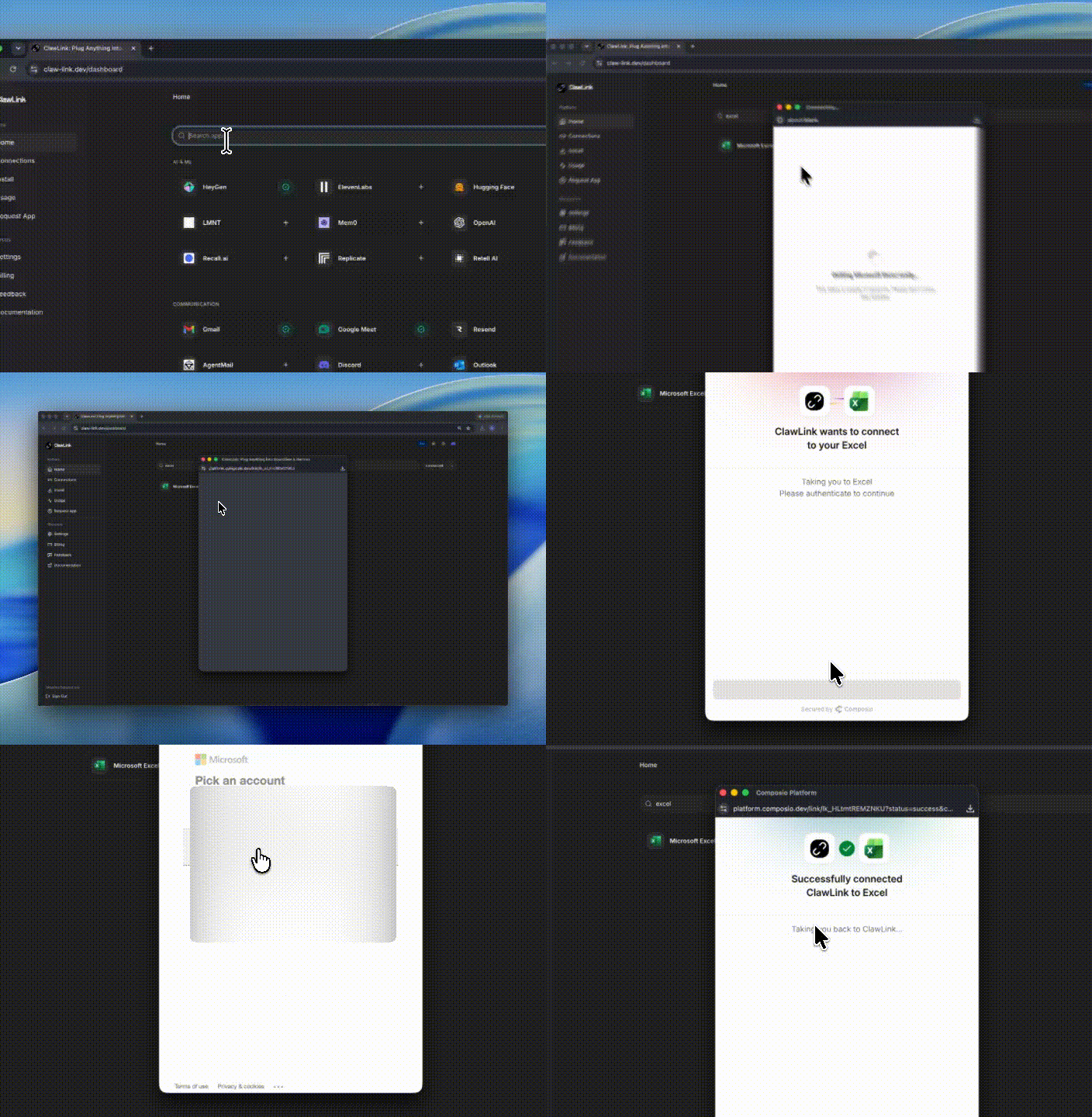 |\n| Run the install command in OpenClaw | Sign in and approve the device | Open the dashboard and connect Microsoft Excel |\n\n## How It Works\n\n```\n┌─────────────────┐ ┌──────────────┐ ┌──────────────────┐\n│ OpenClaw │────▶│ ClawLink │────▶│ Microsoft Graph │\n│ (User Chat) │ │ (OAuth) │ │ (Excel API) │\n└─────────────────┘ └──────────────┘ └──────────────────┘\n │ │ │\n │ 1. Install Plugin │ │\n │ 2. Pair Device │ │\n │ 3. Connect Excel │ │\n │ │ 4. Secure Token │\n │ │ 5. Proxy Requests │\n │ │ │\n ▼ ▼ ▼\n ┌──────────┐ ┌──────────┐ ┌──────────┐\n │ SKILL │ │ Dashboard│ │ OneDrive │\n │ File │ │ Auth │ │ Excel │\n └──────────┘ └──────────┘ └──────────┘\n```\n\n## Install\n\nInstall the verified ClawLink plugin from ClawHub. After the user confirms, complete the full setup so ClawLink tools are visible in the next OpenClaw chat.\n\n```bash\nopenclaw plugins install clawhub:clawlink-plugin\nopenclaw config set tools.alsoAllow '[\"clawlink-plugin\"]' --strict-json\nopenclaw gateway restart\n```\n\nThen tell the user: \"OpenClaw has been restarted. Send `/new` as a standalone message to start a fresh chat, then ask for Microsoft Excel again.\"\n\n## Quick Start\n\n```bash\n# List worksheets in a workbook\nclawlink_call_tool --tool \"excel_list_worksheets\" --params '{\"file_id\": \"WORKBOOK_ID\"}'\n\n# Read a cell range\nclawlink_call_tool --tool \"excel_get_range\" --params '{\"file_id\": \"WORKBOOK_ID\", \"worksheet_name\": \"Sheet1\", \"range_address\": \"A1:B10\"}'\n\n# Update a cell range\nclawlink_call_tool --tool \"excel_update_range\" --params '{\"file_id\": \"WORKBOOK_ID\", \"worksheet_name\": \"Sheet1\", \"range_address\": \"A1:B2\", \"values\": [[\"Name\", \"Age\"], [\"Alice\", 30]]}'\n```\n\n## Authentication\n\nAll Microsoft Excel tool calls are authenticated automatically by ClawLink using the user's connected Microsoft account.\n\n**No API key is required in chat.** ClawLink stores the OAuth token securely and injects it into every Microsoft Graph request on the user's behalf.\n\n### Getting Connected\n\n1. Install the ClawLink plugin (see Install above).\n2. Pair the plugin with `clawlink_begin_pairing` if it is not configured yet.\n3. Open https://claw-link.dev/dashboard?add=microsoft-excel and connect Microsoft Excel.\n4. Call `clawlink_list_integrations` to verify the connection is active.\n\n## Connection Management\n\n### List Connections\n\n```bash\nclawlink_list_integrations\n```\n\n**Response:** Returns all connected integrations. Look for `microsoft-excel` in the list.\n\n### Verify Connection\n\n```bash\nclawlink_list_tools --integration microsoft-excel\n```\n\n**Response:** Returns the live tool catalog for Microsoft Excel.\n\n### Reconnect\n\nIf Microsoft Excel tools are missing or the connection shows an error:\n\n1. Direct the user to https://claw-link.dev/dashboard?add=microsoft-excel\n2. After they confirm, call `clawlink_list_integrations` to verify\n3. Then call `clawlink_list_tools --integration microsoft-excel`\n\n## Workbook Access Patterns\n\nYou can access workbooks using either **OneDrive** or **SharePoint** paths:\n\n**By File ID (OneDrive):**\n```bash\nclawlink_call_tool --tool \"excel_get_workbook\" --params '{\"file_id\": \"YOUR_FILE_ID\"}'\n```\n\n**By File Path (OneDrive):**\n```bash\nclawlink_call_tool --tool \"excel_search_files\" --params '{\"query\": \"workbook.xlsx\"}'\n```\n\n**SharePoint workbooks:**\nUse the `sharepoint` variants of tools (e.g., `excel_get_sharepoint_worksheet`, `excel_update_sharepoint_range`).\n\n## Security & Permissions\n\n- Access is scoped to workbooks, worksheets, tables, and cell data within the connected Microsoft account.\n- **All write operations require explicit user confirmation.** Before executing any create, update, or delete call, confirm the target resource and intended effect with the user.\n- Destructive actions (delete worksheet, clear range, delete table row/column) are marked as high-impact and must be confirmed.\n- Workbook permissions can be inspected with `excel_list_workbook_permissions` and granted with `excel_add_workbook_permission`.\n\n## Tool Reference\n\n### Drive & File Operations\n\n| Tool | Description | Mode |\n|------|-------------|------|\n| `excel_search_files` | Search OneDrive for Excel workbook IDs by name or query | Read |\n| `excel_list_files` | List files and folders in a drive root or path | Read |\n| `excel_list_drive_item_children` | List immediate children of a folder with pagination | Read |\n| `excel_create_workbook` | Create a new `.xlsx` file with worksheets and data in OneDrive | Write |\n| `excel_upload_workbook` | Upload an external Excel file from a URL into OneDrive/SharePoint | Write |\n| `excel_export_workbook_to_pdf` | Export an Excel workbook to PDF via Microsoft Graph | Write |\n\n### Session Management\n\n| Tool | Description | Mode |\n|------|-------------|------|\n| `excel_get_session` | Create a persistent workbook session for batch operations | Write |\n| `excel_close_session` | Close an active workbook session to release locks | Write |\n\n**Note:** Sessions expire after ~5 minutes of inactivity (persistent) or ~7 minutes (non-persistent). Pass the `session_id` in subsequent write operations when available.\n\n### Worksheet Operations\n\n| Tool | Description | Mode |\n|------|-------------|------|\n| `excel_list_worksheets` | List all worksheets in a workbook | Read |\n| `excel_get_worksheet` | Get a worksheet by name or ID | Read |\n| `excel_add_worksheet` | Add a new worksheet to a workbook | Write |\n| `excel_update_worksheet` | Rename or reposition a worksheet | Write |\n| `excel_delete_worksheet` | Delete a worksheet from the workbook | Write |\n| `excel_protect_worksheet` | Protect a worksheet from editing | Write |\n| `excel_get_worksheet_used_range` | Get the active data region of a worksheet | Read |\n\n### Range Operations\n\n| Tool | Description | Mode |\n|------|-------------|------|\n| `excel_get_range` | Read values, formulas, and formatting from a cell range | Read |\n| `excel_update_range` | Update values and formatting in a cell range | Write |\n| `excel_clear_range` | Clear contents, formats, or both from a range | Write |\n| `excel_insert_range` | Insert cells, shifting existing content down or right | Write |\n| `excel_sort_range` | Sort a range by one or more columns | Write |\n| `excel_merge_cells` | Merge cells in a worksheet range | Write |\n\n### Table Operations\n\n| Tool | Description | Mode |\n|------|-------------|------|\n| `excel_list_tables` | List all tables in a worksheet | Read |\n| `excel_get_table_column` | Get a specific table column by ID or name | Read |\n| `excel_list_table_columns` | List all columns in a table | Read |\n| `excel_list_table_rows` | List all rows in a table | Read |\n| `excel_add_table` | Create a new table from a range | Write |\n| `excel_update_table` | Update table properties (name, style, totals) | Write |\n| `excel_add_table_row` | Append a row to a table | Write |\n| `excel_add_table_column` | Append a column to a table | Write |\n| `excel_delete_table_row` | Delete a row from a table by index | Write |\n| `excel_delete_table_column` | Delete a column from a table by index | Write |\n| `excel_apply_table_filter` | Apply a filter to a table column | Write |\n| `excel_clear_table_filter` | Clear an existing filter from a table | Write |\n| `excel_apply_table_sort` | Apply a sort to a table | Write |\n| `excel_convert_table_to_range` | Convert a table back to a plain range | Write |\n\n### Chart Operations\n\n| Tool | Description | Mode |\n|------|-------------|------|\n| `excel_list_charts` | List all charts in a worksheet | Read |\n| `excel_list_chart_series` | List data series in a chart | Read |\n| `excel_get_chart_axis` | Retrieve axis properties (min, max, interval) | Read |\n| `excel_get_chart_data_labels` | Retrieve chart data label settings | Read |\n| `excel_get_chart_legend` | Retrieve chart legend visibility and formatting | Read |\n| `excel_add_chart` | Add a new chart to a worksheet | Write |\n| `excel_update_chart` | Update an existing chart | Write |\n| `excel_update_chart_legend` | Update chart legend position or formatting | Write |\n\n### SharePoint Operations\n\n| Tool | Description | Mode |\n|------|-------------|------|\n| `excel_list_sharepoint_worksheets` | List worksheets in a SharePoint workbook | Read |\n| `excel_get_sharepoint_worksheet` | Get a worksheet from a SharePoint workbook | Read |\n| `excel_get_sharepoint_range` | Read a range from a SharePoint worksheet | Read |\n| `excel_update_sharepoint_range` | Update a range in a SharePoint worksheet | Write |\n| `excel_list_sharepoint_tables` | List tables in a SharePoint worksheet | Read |\n| `excel_add_sharepoint_worksheet` | Add a worksheet to a SharePoint workbook | Write |\n\n### Workbook Metadata\n\n| Tool | Description | Mode |\n|------|-------------|------|\n| `excel_get_workbook` | Retrieve workbook properties, tables, and worksheets | Read |\n| `excel_list_named_items` | List named ranges and items in a workbook | Read |\n| `excel_list_comments` | List all comments in a workbook | Read |\n| `excel_list_workbook_permissions` | List sharing permissions on a workbook file | Read |\n| `excel_add_workbook_permission` | Grant access to a workbook via invite | Write |\n\n## Code Examples\n\n### Read a range\n\n```bash\nclawlink_call_tool --tool \"excel_get_range\" \\\n --params '{\n \"file_id\": \"YOUR_FILE_ID\",\n \"worksheet_name\": \"Sheet1\",\n \"range_address\": \"A1:C10\"\n }'\n```\n\n### Update a range\n\n```bash\nclawlink_call_tool --tool \"excel_update_range\" \\\n --params '{\n \"file_id\": \"YOUR_FILE_ID\",\n \"worksheet_name\": \"Sheet1\",\n \"range_address\": \"A1:B2\",\n \"values\": [[\"Updated\", \"Values\"], [100, 200]]\n }'\n```\n\n### Create a table\n\n```bash\nclawlink_call_tool --tool \"excel_add_table\" \\\n --params '{\n \"file_id\": \"YOUR_FILE_ID\",\n \"worksheet_name\": \"Sheet1\",\n \"address\": \"A1:C4\",\n \"has_headers\": true\n }'\n```\n\n### Add a table row\n\n```bash\nclawlink_call_tool --tool \"excel_add_table_row\" \\\n --params '{\n \"file_id\": \"YOUR_FILE_ID\",\n \"table_name\": \"Table1\",\n \"values\": [[\"Carol\", 35, \"Chicago\"]]\n }'\n```\n\n### Add a chart\n\n```bash\nclawlink_call_tool --tool \"excel_add_chart\" \\\n --params '{\n \"file_id\": \"YOUR_FILE_ID\",\n \"worksheet_name\": \"Sheet1\",\n \"type\": \"ColumnClustered\",\n \"source_data\": \"A1:C4\",\n \"series_by\": \"Auto\"\n }'\n```\n\n## Discovery Workflow\n\n1. Call `clawlink_list_integrations` to confirm Microsoft Excel is connected.\n2. Call `clawlink_list_tools --integration microsoft-excel` to see the live catalog.\n3. Treat the returned list as the source of truth. Do not guess or assume what tools exist.\n4. If the user describes a capability but the exact tool is unclear, call `clawlink_search_tools` with a short query and integration `microsoft-excel`.\n5. If no Microsoft Excel tools appear, direct the user to https://claw-link.dev/dashboard?add=microsoft-excel.\n\n## Execution Workflow\n\n```\n┌─────────────────────────────────────────────────────────────┐\n│ READ OPERATIONS (Safe) │\n│ list → get → search → describe → call │\n│ │\n│ Example: List worksheets → Read range → Show results │\n└─────────────────────────────────────────────────────────────┘\n │\n ▼\n┌─────────────────────────────────────────────────────────────┐\n│ WRITE OPERATIONS (Require Confirmation) │\n│ list → get → describe → preview → confirm → call │\n│ │\n│ Example: Describe tool → Preview changes → User approves │\n│ → Execute update │\n└─────────────────────────────────────────────────────────────┘\n```\n\n1. For unfamiliar tools, ambiguous requests, or any write action, call `clawlink_describe_tool` first.\n2. Use the returned guidance, schema, `whenToUse`, `askBefore`, `safeDefaults`, `examples`, and `followups` to shape the call.\n3. Prefer read, list, search, and get operations before writes when that reduces ambiguity.\n4. For writes or anything marked as requiring confirmation, call `clawlink_preview_tool` first.\n5. Execute with `clawlink_call_tool`. Pass confirmation only after the preview matches the user's intent.\n6. If the tool call fails, report the real error. Do not invent results or restate the failure as a missing capability unless the live catalog supports that conclusion.\n\n## Notes\n\n- Only `.xlsx` files are supported (not legacy `.xls`).\n- Worksheet names with special characters may need URL encoding when using direct Graph paths.\n- Table and worksheet IDs containing `{` and `}` must be URL-encoded (`%7B` and `%7D`) in raw Graph URLs. ClawLink handles this automatically.\n- Use `null` in value arrays to skip updating specific cells.\n- Blank cells should use `\"\"` (empty string).\n- Range addresses use A1 notation (e.g., `A1:C10`, `Sheet1!A1:B5`).\n- When piping shell output, environment variables may not expand correctly in some shells; prefer explicit JSON parameters.\n\n## Error Handling\n\n| Status / Error | Meaning |\n|----------------|---------|\n| Tool not found | The tool name does not exist in the current catalog. Verify with `clawlink_list_tools --integration microsoft-excel`. |\n| Missing connection | Microsoft Excel is not connected. Direct the user to https://claw-link.dev/dashboard?add=microsoft-excel. |\n| `ItemNotFound` | File or resource does not exist. Check the `file_id` or path. |\n| `ItemAlreadyExists` | Worksheet or table with that name already exists. |\n| `InvalidArgument` | Invalid parameter or missing required field. Review the tool schema with `clawlink_describe_tool`. |\n| `SessionNotFound` | Session expired or does not exist. Create a new session with `excel_get_session`. |\n| Write rejected | User did not confirm a write action. Always confirm before executing writes. |\n\n### Troubleshooting: Tools Not Visible\n\n1. Check that the ClawLink plugin is installed:\n ```bash\n openclaw plugins list\n ```\n2. If the plugin is installed but tools are missing, tell the user to send `/new` as a standalone message to reload the catalog.\n3. If a fresh chat does not help, run:\n ```bash\n openclaw config set tools.alsoAllow '[\"clawlink-plugin\"]' --strict-json\n openclaw gateway restart\n ```\n4. After restart, tell the user to send `/new` again and retry.\n\n### Troubleshooting: Invalid Tool Call\n\n1. Ensure the integration slug is exactly `microsoft-excel`.\n2. Use `clawlink_describe_tool` to verify parameter names and types before calling.\n3. For write operations, always call `clawlink_preview_tool` first.\n\n## Resources\n\n- [Microsoft Graph Excel API Overview](https://learn.microsoft.com/en-us/graph/api/resources/excel)\n- [Working with Excel in Microsoft Graph](https://learn.microsoft.com/en-us/graph/excel-concept-overview)\n- [Excel Workbook Resource](https://learn.microsoft.com/en-us/graph/api/resources/workbook)\n- [Excel Worksheet Resource](https://learn.microsoft.com/en-us/graph/api/resources/worksheet)\n- [Excel Range Resource](https://learn.microsoft.com/en-us/graph/api/resources/range)\n- [Excel Table Resource](https://learn.microsoft.com/en-us/graph/api/resources/table)\n- ClawLink: https://claw-link.dev/?utm_source=clawhub&utm_medium=referral&utm_content=microsoft-excel-spreadsheets\n- ClawLink Docs: https://docs.claw-link.dev/openclaw\n- ClawLink Verification: https://claw-link.dev/verify\n\n## Related Skills\n\n- [Google Sheets](https://clawhub.ai/hith3sh/google-sheets-spreadsheets) — For Google Workspace spreadsheet operations\n- [OneDrive](https://clawhub.ai/hith3sh/onedrive-files) — For general OneDrive file management\n- [SharePoint](https://clawhub.ai/hith3sh/sharepoint-sites) — For SharePoint site and file operations\n\n---\n\n**Powered by [ClawLink](https://claw-link.dev/?utm_source=clawhub&utm_medium=referral&utm_content=microsoft-excel-spreadsheets)** — an integration hub for OpenClaw\n\n\n\nFile v1.0.5:_meta.json\n\n{\n \"ownerId\": \"kn713pxvayh8fjhb503zjb8yxh815j54\",\n \"slug\": \"microsoft-excel-spreadsheets\",\n \"version\": \"1.0.5\",\n \"publishedAt\": 1780989197389\n}\n\nFile v1.0.5:skill-card.md\n\n## Description:\n\nMicrosoft Excel API integration with managed OAuth. Read and write Excel workbooks, worksheets, ranges, tables, and charts stored in OneDrive. Use this skill when users want to read or modify Excel spreadsheets, manage worksheet data, work with tables, or access cell values.\n\nThis skill is ready for commercial/non-commercial use.\n\n## Publisher:\n\n[hith3sh](https://clawhub.ai/user/hith3sh)\n\n### License/Terms of Use:\n\nMIT-0\n\n## Use Case:\n\nDevelopers, analysts, and external users use this skill to let an agent read, search, create, and modify Microsoft Excel workbooks stored in OneDrive or SharePoint through managed Microsoft OAuth.\n\n### Deployment Geography for Use:\n\nGlobal\n\n## Known Risks and Mitigations:\n\nRisk: The skill installs and globally enables an unpinned third-party ClawLink plugin that can access and modify Microsoft 365 spreadsheet data.\n\nMitigation: Review the ClawLink plugin and requested Microsoft OAuth scopes before installing, prefer a pinned or verified plugin version, and keep a clear removal path.\n\nRisk: Workbook write, share, and delete operations can alter or expose OneDrive or SharePoint files.\n\nMitigation: Require explicit user confirmation and preview for every write, share, or delete action, and verify the target workbook, worksheet, range, table, or chart before execution.\n\nRisk: The OAuth connection may expose workbook content from the connected Microsoft 365 account to the integration.\n\nMitigation: Use only Microsoft 365 accounts and workbooks the user is comfortable connecting, and inspect workbook permissions before granting or changing access.\n\n## Reference(s):\n\n- [ClawHub Skill Page](https://clawhub.ai/hith3sh/skills/microsoft-excel-spreadsheets)\n- [Microsoft Graph Excel API Overview](https://learn.microsoft.com/en-us/graph/api/resources/excel)\n- [Working with Excel in Microsoft Graph](https://learn.microsoft.com/en-us/graph/excel-concept-overview)\n- [Excel Workbook Resource](https://learn.microsoft.com/en-us/graph/api/resources/workbook)\n- [Excel Worksheet Resource](https://learn.microsoft.com/en-us/graph/api/resources/worksheet)\n- [Excel Range Resource](https://learn.microsoft.com/en-us/graph/api/resources/range)\n- [Excel Table Resource](https://learn.microsoft.com/en-us/graph/api/resources/table)\n- [ClawLink Documentation](https://docs.claw-link.dev/openclaw)\n- [ClawLink Verification](https://claw-link.dev/verify)\n\n## Skill Output:\n\n**Output Type(s):** [Text, Markdown, Shell commands, Configuration, Guidance]\n\n**Output Format:** [Markdown guidance with inline shell commands and JSON tool-call examples]\n\n**Output Parameters:** [1D]\n\n**Other Properties Related to Output:** [Produces agent instructions for connecting to ClawLink and using Microsoft Excel tools; write, share, and delete operations require explicit user confirmation.]\n\n## Skill Version(s):\n\n1.0.5 (source: server release evidence)\n\n## Ethical Considerations:\n\nUsers should evaluate whether this skill is appropriate for their environment, review any generated or modified files before relying on them, and apply their organization's safety, security, and compliance requirements before deployment.\n\nArchive v1.0.4: 3 files, 7055 bytes\n\nFiles: skill-card.md (2849b), SKILL.md (18574b), _meta.json (147b)\n\nFile v1.0.4:SKILL.md\n\n---\nname: microsoft-excel-spreadsheets\ndescription: Microsoft Excel API integration with managed OAuth. Read and write Excel workbooks, worksheets, ranges, tables, and charts stored in OneDrive. Use this skill when users want to read or modify Excel spreadsheets, manage worksheet data, work with tables, or access cell values.\n---\n\n# Microsoft Excel\n\n\n\nAccess Microsoft Excel via the Microsoft Graph API with managed OAuth authentication. Read and write workbooks, worksheets, ranges, tables, and charts stored in OneDrive or SharePoint.\n\nThis skill uses [ClawLink](https://claw-link.dev) for hosted connection flows and credentials so you do not need to configure Microsoft Excel API access yourself.\n\n### Setup in 3 Steps\n\n| Step 1: Install | Step 2: Pair Account | Step 3: Connect Excel |\n|:---:|:---:|:---:|\n|  |  |  |\n| Run the install command in OpenClaw | Sign in and approve the device | Open the dashboard and connect Microsoft Excel |\n\n## How It Works\n\n```\n┌─────────────────┐ ┌──────────────┐ ┌──────────────────┐\n│ OpenClaw │────▶│ ClawLink │────▶│ Microsoft Graph │\n│ (User Chat) │ │ (OAuth) │ │ (Excel API) │\n└─────────────────┘ └──────────────┘ └──────────────────┘\n │ │ │\n │ 1. Install Plugin │ │\n │ 2. Pair Device │ │\n │ 3. Connect Excel │ │\n │ │ 4. Secure Token │\n │ │ 5. Proxy Requests │\n │ │ │\n ▼ ▼ ▼\n ┌──────────┐ ┌──────────┐ ┌──────────┐\n │ SKILL │ │ Dashboard│ │ OneDrive │\n │ File │ │ Auth │ │ Excel │\n └──────────┘ └──────────┘ └──────────┘\n```\n\n## Install\n\nInstall the verified ClawLink plugin from ClawHub. After the user confirms, complete the full setup so ClawLink tools are visible in the next OpenClaw chat.\n\n```bash\nopenclaw plugins install clawhub:clawlink-plugin\nopenclaw config set tools.alsoAllow '[\"clawlink-plugin\"]' --strict-json\nopenclaw gateway restart\n```\n\nThen tell the user: \"OpenClaw has been restarted. Send `/new` as a standalone message to start a fresh chat, then ask for Microsoft Excel again.\"\n\n## Quick Start\n\n```bash\n# List worksheets in a workbook\nclawlink_call_tool --tool \"excel_list_worksheets\" --params '{\"file_id\": \"WORKBOOK_ID\"}'\n\n# Read a cell range\nclawlink_call_tool --tool \"excel_get_range\" --params '{\"file_id\": \"WORKBOOK_ID\", \"worksheet_name\": \"Sheet1\", \"range_address\": \"A1:B10\"}'\n\n# Update a cell range\nclawlink_call_tool --tool \"excel_update_range\" --params '{\"file_id\": \"WORKBOOK_ID\", \"worksheet_name\": \"Sheet1\", \"range_address\": \"A1:B2\", \"values\": [[\"Name\", \"Age\"], [\"Alice\", 30]]}'\n```\n\n## Authentication\n\nAll Microsoft Excel tool calls are authenticated automatically by ClawLink using the user's connected Microsoft account.\n\n**No API key is required in chat.** ClawLink stores the OAuth token securely and injects it into every Microsoft Graph request on the user's behalf.\n\n### Getting Connected\n\n1. Install the ClawLink plugin (see Install above).\n2. Pair the plugin with `clawlink_begin_pairing` if it is not configured yet.\n3. Open https://claw-link.dev/dashboard?add=microsoft-excel and connect Microsoft Excel.\n4. Call `clawlink_list_integrations` to verify the connection is active.\n\n## Connection Management\n\n### List Connections\n\n```bash\nclawlink_list_integrations\n```\n\n**Response:** Returns all connected integrations. Look for `microsoft-excel` in the list.\n\n### Verify Connection\n\n```bash\nclawlink_list_tools --integration microsoft-excel\n```\n\n**Response:** Returns the live tool catalog for Microsoft Excel.\n\n### Reconnect\n\nIf Microsoft Excel tools are missing or the connection shows an error:\n\n1. Direct the user to https://claw-link.dev/dashboard?add=microsoft-excel\n2. After they confirm, call `clawlink_list_integrations` to verify\n3. Then call `clawlink_list_tools --integration microsoft-excel`\n\n## Workbook Access Patterns\n\nYou can access workbooks using either **OneDrive** or **SharePoint** paths:\n\n**By File ID (OneDrive):**\n```bash\nclawlink_call_tool --tool \"excel_get_workbook\" --params '{\"file_id\": \"YOUR_FILE_ID\"}'\n```\n\n**By File Path (OneDrive):**\n```bash\nclawlink_call_tool --tool \"excel_search_files\" --params '{\"query\": \"workbook.xlsx\"}'\n```\n\n**SharePoint workbooks:**\nUse the `sharepoint` variants of tools (e.g., `excel_get_sharepoint_worksheet`, `excel_update_sharepoint_range`).\n\n## Security & Permissions\n\n- Access is scoped to workbooks, worksheets, tables, and cell data within the connected Microsoft account.\n- **All write operations require explicit user confirmation.** Before executing any create, update, or delete call, confirm the target resource and intended effect with the user.\n- Destructive actions (delete worksheet, clear range, delete table row/column) are marked as high-impact and must be confirmed.\n- Workbook permissions can be inspected with `excel_list_workbook_permissions` and granted with `excel_add_workbook_permission`.\n\n## Tool Reference\n\n### Drive & File Operations\n\n| Tool | Description | Mode |\n|------|-------------|------|\n| `excel_search_files` | Search OneDrive for Excel workbook IDs by name or query | Read |\n| `excel_list_files` | List files and folders in a drive root or path | Read |\n| `excel_list_drive_item_children` | List immediate children of a folder with pagination | Read |\n| `excel_create_workbook` | Create a new `.xlsx` file with worksheets and data in OneDrive | Write |\n| `excel_upload_workbook` | Upload an external Excel file from a URL into OneDrive/SharePoint | Write |\n| `excel_export_workbook_to_pdf` | Export an Excel workbook to PDF via Microsoft Graph | Write |\n\n### Session Management\n\n| Tool | Description | Mode |\n|------|-------------|------|\n| `excel_get_session` | Create a persistent workbook session for batch operations | Write |\n| `excel_close_session` | Close an active workbook session to release locks | Write |\n\n**Note:** Sessions expire after ~5 minutes of inactivity (persistent) or ~7 minutes (non-persistent). Pass the `session_id` in subsequent write operations when available.\n\n### Worksheet Operations\n\n| Tool | Description | Mode |\n|------|-------------|------|\n| `excel_list_worksheets` | List all worksheets in a workbook | Read |\n| `excel_get_worksheet` | Get a worksheet by name or ID | Read |\n| `excel_add_worksheet` | Add a new worksheet to a workbook | Write |\n| `excel_update_worksheet` | Rename or reposition a worksheet | Write |\n| `excel_delete_worksheet` | Delete a worksheet from the workbook | Write |\n| `excel_protect_worksheet` | Protect a worksheet from editing | Write |\n| `excel_get_worksheet_used_range` | Get the active data region of a worksheet | Read |\n\n### Range Operations\n\n| Tool | Description | Mode |\n|------|-------------|------|\n| `excel_get_range` | Read values, formulas, and formatting from a cell range | Read |\n| `excel_update_range` | Update values and formatting in a cell range | Write |\n| `excel_clear_range` | Clear contents, formats, or both from a range | Write |\n| `excel_insert_range` | Insert cells, shifting existing content down or right | Write |\n| `excel_sort_range` | Sort a range by one or more columns | Write |\n| `excel_merge_cells` | Merge cells in a worksheet range | Write |\n\n### Table Operations\n\n| Tool | Description | Mode |\n|------|-------------|------|\n| `excel_list_tables` | List all tables in a worksheet | Read |\n| `excel_get_table_column` | Get a specific table column by ID or name | Read |\n| `excel_list_table_columns` | List all columns in a table | Read |\n| `excel_list_table_rows` | List all rows in a table | Read |\n| `excel_add_table` | Create a new table from a range | Write |\n| `excel_update_table` | Update table properties (name, style, totals) | Write |\n| `excel_add_table_row` | Append a row to a table | Write |\n| `excel_add_table_column` | Append a column to a table | Write |\n| `excel_delete_table_row` | Delete a row from a table by index | Write |\n| `excel_delete_table_column` | Delete a column from a table by index | Write |\n| `excel_apply_table_filter` | Apply a filter to a table column | Write |\n| `excel_clear_table_filter` | Clear an existing filter from a table | Write |\n| `excel_apply_table_sort` | Apply a sort to a table | Write |\n| `excel_convert_table_to_range` | Convert a table back to a plain range | Write |\n\n### Chart Operations\n\n| Tool | Description | Mode |\n|------|-------------|------|\n| `excel_list_charts` | List all charts in a worksheet | Read |\n| `excel_list_chart_series` | List data series in a chart | Read |\n| `excel_get_chart_axis` | Retrieve axis properties (min, max, interval) | Read |\n| `excel_get_chart_data_labels` | Retrieve chart data label settings | Read |\n| `excel_get_chart_legend` | Retrieve chart legend visibility and formatting | Read |\n| `excel_add_chart` | Add a new chart to a worksheet | Write |\n| `excel_update_chart` | Update an existing chart | Write |\n| `excel_update_chart_legend` | Update chart legend position or formatting | Write |\n\n### SharePoint Operations\n\n| Tool | Description | Mode |\n|------|-------------|------|\n| `excel_list_sharepoint_worksheets` | List worksheets in a SharePoint workbook | Read |\n| `excel_get_sharepoint_worksheet` | Get a worksheet from a SharePoint workbook | Read |\n| `excel_get_sharepoint_range` | Read a range from a SharePoint worksheet | Read |\n| `excel_update_sharepoint_range` | Update a range in a SharePoint worksheet | Write |\n| `excel_list_sharepoint_tables` | List tables in a SharePoint worksheet | Read |\n| `excel_add_sharepoint_worksheet` | Add a worksheet to a SharePoint workbook | Write |\n\n### Workbook Metadata\n\n| Tool | Description | Mode |\n|------|-------------|------|\n| `excel_get_workbook` | Retrieve workbook properties, tables, and worksheets | Read |\n| `excel_list_named_items` | List named ranges and items in a workbook | Read |\n| `excel_list_comments` | List all comments in a workbook | Read |\n| `excel_list_workbook_permissions` | List sharing permissions on a workbook file | Read |\n| `excel_add_workbook_permission` | Grant access to a workbook via invite | Write |\n\n## Code Examples\n\n### Read a range\n\n```bash\nclawlink_call_tool --tool \"excel_get_range\" \\\n --params '{\n \"file_id\": \"YOUR_FILE_ID\",\n \"worksheet_name\": \"Sheet1\",\n \"range_address\": \"A1:C10\"\n }'\n```\n\n### Update a range\n\n```bash\nclawlink_call_tool --tool \"excel_update_range\" \\\n --params '{\n \"file_id\": \"YOUR_FILE_ID\",\n \"worksheet_name\": \"Sheet1\",\n \"range_address\": \"A1:B2\",\n \"values\": [[\"Updated\", \"Values\"], [100, 200]]\n }'\n```\n\n### Create a table\n\n```bash\nclawlink_call_tool --tool \"excel_add_table\" \\\n --params '{\n \"file_id\": \"YOUR_FILE_ID\",\n \"worksheet_name\": \"Sheet1\",\n \"address\": \"A1:C4\",\n \"has_headers\": true\n }'\n```\n\n### Add a table row\n\n```bash\nclawlink_call_tool --tool \"excel_add_table_row\" \\\n --params '{\n \"file_id\": \"YOUR_FILE_ID\",\n \"table_name\": \"Table1\",\n \"values\": [[\"Carol\", 35, \"Chicago\"]]\n }'\n```\n\n### Add a chart\n\n```bash\nclawlink_call_tool --tool \"excel_add_chart\" \\\n --params '{\n \"file_id\": \"YOUR_FILE_ID\",\n \"worksheet_name\": \"Sheet1\",\n \"type\": \"ColumnClustered\",\n \"source_data\": \"A1:C4\",\n \"series_by\": \"Auto\"\n }'\n```\n\n## Discovery Workflow\n\n1. Call `clawlink_list_integrations` to confirm Microsoft Excel is connected.\n2. Call `clawlink_list_tools --integration microsoft-excel` to see the live catalog.\n3. Treat the returned list as the source of truth. Do not guess or assume what tools exist.\n4. If the user describes a capability but the exact tool is unclear, call `clawlink_search_tools` with a short query and integration `microsoft-excel`.\n5. If no Microsoft Excel tools appear, direct the user to https://claw-link.dev/dashboard?add=microsoft-excel.\n\n## Execution Workflow\n\n```\n┌─────────────────────────────────────────────────────────────┐\n│ READ OPERATIONS (Safe) │\n│ list → get → search → describe → call │\n│ │\n│ Example: List worksheets → Read range → Show results │\n└─────────────────────────────────────────────────────────────┘\n │\n ▼\n┌─────────────────────────────────────────────────────────────┐\n│ WRITE OPERATIONS (Require Confirmation) │\n│ list → get → describe → preview → confirm → call │\n│ │\n│ Example: Describe tool → Preview changes → User approves │\n│ → Execute update │\n└─────────────────────────────────────────────────────────────┘\n```\n\n1. For unfamiliar tools, ambiguous requests, or any write action, call `clawlink_describe_tool` first.\n2. Use the returned guidance, schema, `whenToUse`, `askBefore`, `safeDefaults`, `examples`, and `followups` to shape the call.\n3. Prefer read, list, search, and get operations before writes when that reduces ambiguity.\n4. For writes or anything marked as requiring confirmation, call `clawlink_preview_tool` first.\n5. Execute with `clawlink_call_tool`. Pass confirmation only after the preview matches the user's intent.\n6. If the tool call fails, report the real error. Do not invent results or restate the failure as a missing capability unless the live catalog supports that conclusion.\n\n## Notes\n\n- Only `.xlsx` files are supported (not legacy `.xls`).\n- Worksheet names with special characters may need URL encoding when using direct Graph paths.\n- Table and worksheet IDs containing `{` and `}` must be URL-encoded (`%7B` and `%7D`) in raw Graph URLs. ClawLink handles this automatically.\n- Use `null` in value arrays to skip updating specific cells.\n- Blank cells should use `\"\"` (empty string).\n- Range addresses use A1 notation (e.g., `A1:C10`, `Sheet1!A1:B5`).\n- When piping shell output, environment variables may not expand correctly in some shells; prefer explicit JSON parameters.\n\n## Error Handling\n\n| Status / Error | Meaning |\n|----------------|---------|\n| Tool not found | The tool name does not exist in the current catalog. Verify with `clawlink_list_tools --integration microsoft-excel`. |\n| Missing connection | Microsoft Excel is not connected. Direct the user to https://claw-link.dev/dashboard?add=microsoft-excel. |\n| `ItemNotFound` | File or resource does not exist. Check the `file_id` or path. |\n| `ItemAlreadyExists` | Worksheet or table with that name already exists. |\n| `InvalidArgument` | Invalid parameter or missing required field. Review the tool schema with `clawlink_describe_tool`. |\n| `SessionNotFound` | Session expired or does not exist. Create a new session with `excel_get_session`. |\n| Write rejected | User did not confirm a write action. Always confirm before executing writes. |\n\n### Troubleshooting: Tools Not Visible\n\n1. Check that the ClawLink plugin is installed:\n ```bash\n openclaw plugins list\n ```\n2. If the plugin is installed but tools are missing, tell the user to send `/new` as a standalone message to reload the catalog.\n3. If a fresh chat does not help, run:\n ```bash\n openclaw config set tools.alsoAllow '[\"clawlink-plugin\"]' --strict-json\n openclaw gateway restart\n ```\n4. After restart, tell the user to send `/new` again and retry.\n\n### Troubleshooting: Invalid Tool Call\n\n1. Ensure the integration slug is exactly `microsoft-excel`.\n2. Use `clawlink_describe_tool` to verify parameter names and types before calling.\n3. For write operations, always call `clawlink_preview_tool` first.\n\n## Resources\n\n- [Microsoft Graph Excel API Overview](https://learn.microsoft.com/en-us/graph/api/resources/excel)\n- [Working with Excel in Microsoft Graph](https://learn.microsoft.com/en-us/graph/excel-concept-overview)\n- [Excel Workbook Resource](https://learn.microsoft.com/en-us/graph/api/resources/workbook)\n- [Excel Worksheet Resource](https://learn.microsoft.com/en-us/graph/api/resources/worksheet)\n- [Excel Range Resource](https://learn.microsoft.com/en-us/graph/api/resources/range)\n- [Excel Table Resource](https://learn.microsoft.com/en-us/graph/api/resources/table)\n- ClawLink: https://claw-link.dev\n- ClawLink Docs: https://docs.claw-link.dev/openclaw\n- ClawLink Verification: https://claw-link.dev/verify\n\n## Related Skills\n\n- [Google Sheets](https://clawhub.ai/hith3sh/google-sheets-spreadsheets) — For Google Workspace spreadsheet operations\n- [OneDrive](https://clawhub.ai/hith3sh/onedrive-files) — For general OneDrive file management\n- [SharePoint](https://clawhub.ai/hith3sh/sharepoint-sites) — For SharePoint site and file operations\n\n---\n\n**Powered by [ClawLink](https://claw-link.dev)** — an integration hub for OpenClaw\n\n\n\nFile v1.0.4:_meta.json\n\n{\n \"ownerId\": \"kn713pxvayh8fjhb503zjb8yxh815j54\",\n \"slug\": \"microsoft-excel-spreadsheets\",\n \"version\": \"1.0.4\",\n \"publishedAt\": 1780981191557\n}\n\nFile v1.0.4:skill-card.md\n\n## Description:
\nMicrosoft Excel API integration with managed OAuth. Read and write Excel workbooks, worksheets, ranges, tables, and charts stored in OneDrive.
\n\nThis skill is ready for commercial/non-commercial use.
\n\n## Publisher:
\n[hith3sh](https://clawhub.ai/user/hith3sh)
\n\n### License/Terms of Use:
\nMIT-0
\n\n\n## Use Case:
\nDevelopers and OpenClaw users use this skill to search, read, update, and manage Microsoft Excel workbooks, worksheets, ranges, tables, charts, and workbook permissions through a connected Microsoft account.
\n\n### Deployment Geography for Use:
\nGlobal
\n\n## Known Risks and Mitigations:
\nRisk: The skill can read and modify Excel workbooks using a connected Microsoft account.
\nMitigation: Install only if this account access is intended, and review write previews before approving changes.
\nRisk: Deletes, range clears, table changes, and permission grants can have high impact on workbook data or access.
\nMitigation: Confirm the target workbook, worksheet, range, table, and permission recipient before executing those operations.
\n\n\n## Reference(s):
\n- [ClawHub skill page](https://clawhub.ai/hith3sh/microsoft-excel-spreadsheets)
\n- [Publisher profile](https://clawhub.ai/user/hith3sh)
\n- [Microsoft Graph Excel API overview](https://learn.microsoft.com/en-us/graph/api/resources/excel)
\n- [Working with Excel in Microsoft Graph](https://learn.microsoft.com/en-us/graph/excel-concept-overview)
\n- [Excel workbook resource](https://learn.microsoft.com/en-us/graph/api/resources/workbook)
\n- [Excel worksheet resource](https://learn.microsoft.com/en-us/graph/api/resources/worksheet)
\n- [Excel range resource](https://learn.microsoft.com/en-us/graph/api/resources/range)
\n- [Excel table resource](https://learn.microsoft.com/en-us/graph/api/resources/table)
\n- [ClawLink](https://claw-link.dev)
\n- [ClawLink documentation](https://docs.claw-link.dev/openclaw)
\n- [ClawLink verification](https://claw-link.dev/verify)
\n\n\n## Skill Output:
\n**Output Type(s):** [text, markdown, shell commands, configuration, guidance]
\n**Output Format:** [Markdown guidance with shell command examples and JSON tool-call parameters]
\n**Output Parameters:** [1D]
\n**Other Properties Related to Output:** [Produces agent instructions for ClawLink-backed Microsoft Excel operations; write actions should be previewed and confirmed before execution.]
\n\n## Skill Version(s):
\n1.0.4 (source: server-resolved release metadata)
\n\n## Ethical Considerations:
\nUsers should evaluate whether this skill is appropriate for their environment, review any generated or modified files before relying on them, and apply their organization's safety, security, and compliance requirements before deployment.
\n\nArchive v1.0.1: 3 files, 7124 bytes\n\nFiles: skill-card.md (2921b), SKILL.md (18574b), _meta.json (147b)\n\nFile v1.0.1:SKILL.md\n\n---\nname: microsoft-excel-spreadsheets\ndescription: Microsoft Excel API integration with managed OAuth. Read and write Excel workbooks, worksheets, ranges, tables, and charts stored in OneDrive. Use this skill when users want to read or modify Excel spreadsheets, manage worksheet data, work with tables, or access cell values.\n---\n\n# Microsoft Excel\n\n\n\nAccess Microsoft Excel via the Microsoft Graph API with managed OAuth authentication. Read and write workbooks, worksheets, ranges, tables, and charts stored in OneDrive or SharePoint.\n\nThis skill uses [ClawLink](https://claw-link.dev) for hosted connection flows and credentials so you do not need to configure Microsoft Excel API access yourself.\n\n### Setup in 3 Steps\n\n| Step 1: Install | Step 2: Pair Account | Step 3: Connect Excel |\n|:---:|:---:|:---:|\n|  |  |  |\n| Run the install command in OpenClaw | Sign in and approve the device | Open the dashboard and connect Microsoft Excel |\n\n## How It Works\n\n```\n┌─────────────────┐ ┌──────────────┐ ┌──────────────────┐\n│ OpenClaw │────▶│ ClawLink │────▶│ Microsoft Graph │\n│ (User Chat) │ │ (OAuth) │ │ (Excel API) │\n└─────────────────┘ └──────────────┘ └──────────────────┘\n │ │ │\n │ 1. Install Plugin │ │\n │ 2. Pair Device │ │\n │ 3. Connect Excel │ │\n │ │ 4. Secure Token │\n │ │ 5. Proxy Requests │\n │ │ │\n ▼ ▼ ▼\n ┌──────────┐ ┌──────────┐ ┌──────────┐\n │ SKILL │ │ Dashboard│ │ OneDrive │\n │ File │ │ Auth │ │ Excel │\n └──────────┘ └──────────┘ └──────────┘\n```\n\n## Install\n\nInstall the verified ClawLink plugin from ClawHub. After the user confirms, complete the full setup so ClawLink tools are visible in the next OpenClaw chat.\n\n```bash\nopenclaw plugins install clawhub:clawlink-plugin\nopenclaw config set tools.alsoAllow '[\"clawlink-plugin\"]' --strict-json\nopenclaw gateway restart\n```\n\nThen tell the user: \"OpenClaw has been restarted. Send `/new` as a standalone message to start a fresh chat, then ask for Microsoft Excel again.\"\n\n## Quick Start\n\n```bash\n# List worksheets in a workbook\nclawlink_call_tool --tool \"excel_list_worksheets\" --params '{\"file_id\": \"WORKBOOK_ID\"}'\n\n# Read a cell range\nclawlink_call_tool --tool \"excel_get_range\" --params '{\"file_id\": \"WORKBOOK_ID\", \"worksheet_name\": \"Sheet1\", \"range_address\": \"A1:B10\"}'\n\n# Update a cell range\nclawlink_call_tool --tool \"excel_update_range\" --params '{\"file_id\": \"WORKBOOK_ID\", \"worksheet_name\": \"Sheet1\", \"range_address\": \"A1:B2\", \"values\": [[\"Name\", \"Age\"], [\"Alice\", 30]]}'\n```\n\n## Authentication\n\nAll Microsoft Excel tool calls are authenticated automatically by ClawLink using the user's connected Microsoft account.\n\n**No API key is required in chat.** ClawLink stores the OAuth token securely and injects it into every Microsoft Graph request on the user's behalf.\n\n### Getting Connected\n\n1. Install the ClawLink plugin (see Install above).\n2. Pair the plugin with `clawlink_begin_pairing` if it is not configured yet.\n3. Open https://claw-link.dev/dashboard?add=microsoft-excel and connect Microsoft Excel.\n4. Call `clawlink_list_integrations` to verify the connection is active.\n\n## Connection Management\n\n### List Connections\n\n```bash\nclawlink_list_integrations\n```\n\n**Response:** Returns all connected integrations. Look for `microsoft-excel` in the list.\n\n### Verify Connection\n\n```bash\nclawlink_list_tools --integration microsoft-excel\n```\n\n**Response:** Returns the live tool catalog for Microsoft Excel.\n\n### Reconnect\n\nIf Microsoft Excel tools are missing or the connection shows an error:\n\n1. Direct the user to https://claw-link.dev/dashboard?add=microsoft-excel\n2. After they confirm, call `clawlink_list_integrations` to verify\n3. Then call `clawlink_list_tools --integration microsoft-excel`\n\n## Workbook Access Patterns\n\nYou can access workbooks using either **OneDrive** or **SharePoint** paths:\n\n**By File ID (OneDrive):**\n```bash\nclawlink_call_tool --tool \"excel_get_workbook\" --params '{\"file_id\": \"YOUR_FILE_ID\"}'\n```\n\n**By File Path (OneDrive):**\n```bash\nclawlink_call_tool --tool \"excel_search_files\" --params '{\"query\": \"workbook.xlsx\"}'\n```\n\n**SharePoint workbooks:**\nUse the `sharepoint` variants of tools (e.g., `excel_get_sharepoint_worksheet`, `excel_update_sharepoint_range`).\n\n## Security & Permissions\n\n- Access is scoped to workbooks, worksheets, tables, and cell data within the connected Microsoft account.\n- **All write operations require explicit user confirmation.** Before executing any create, update, or delete call, confirm the target resource and intended effect with the user.\n- Destructive actions (delete worksheet, clear range, delete table row/column) are marked as high-impact and must be confirmed.\n- Workbook permissions can be inspected with `excel_list_workbook_permissions` and granted with `excel_add_workbook_permission`.\n\n## Tool Reference\n\n### Drive & File Operations\n\n| Tool | Description | Mode |\n|------|-------------|------|\n| `excel_search_files` | Search OneDrive for Excel workbook IDs by name or query | Read |\n| `excel_list_files` | List files and folders in a drive root or path | Read |\n| `excel_list_drive_item_children` | List immediate children of a folder with pagination | Read |\n| `excel_create_workbook` | Create a new `.xlsx` file with worksheets and data in OneDrive | Write |\n| `excel_upload_workbook` | Upload an external Excel file from a URL into OneDrive/SharePoint | Write |\n| `excel_export_workbook_to_pdf` | Export an Excel workbook to PDF via Microsoft Graph | Write |\n\n### Session Management\n\n| Tool | Description | Mode |\n|------|-------------|------|\n| `excel_get_session` | Create a persistent workbook session for batch operations | Write |\n| `excel_close_session` | Close an active workbook session to release locks | Write |\n\n**Note:** Sessions expire after ~5 minutes of inactivity (persistent) or ~7 minutes (non-persistent). Pass the `session_id` in subsequent write operations when available.\n\n### Worksheet Operations\n\n| Tool | Description | Mode |\n|------|-------------|------|\n| `excel_list_worksheets` | List all worksheets in a workbook | Read |\n| `excel_get_worksheet` | Get a worksheet by name or ID | Read |\n| `excel_add_worksheet` | Add a new worksheet to a workbook | Write |\n| `excel_update_worksheet` | Rename or reposition a worksheet | Write |\n| `excel_delete_worksheet` | Delete a worksheet from the workbook | Write |\n| `excel_protect_worksheet` | Protect a worksheet from editing | Write |\n| `excel_get_worksheet_used_range` | Get the active data region of a worksheet | Read |\n\n### Range Operations\n\n| Tool | Description | Mode |\n|------|-------------|------|\n| `excel_get_range` | Read values, formulas, and formatting from a cell range | Read |\n| `excel_update_range` | Update values and formatting in a cell range | Write |\n| `excel_clear_range` | Clear contents, formats, or both from a range | Write |\n| `excel_insert_range` | Insert cells, shifting existing content down or right | Write |\n| `excel_sort_range` | Sort a range by one or more columns | Write |\n| `excel_merge_cells` | Merge cells in a worksheet range | Write |\n\n### Table Operations\n\n| Tool | Description | Mode |\n|------|-------------|------|\n| `excel_list_tables` | List all tables in a worksheet | Read |\n| `excel_get_table_column` | Get a specific table column by ID or name | Read |\n| `excel_list_table_columns` | List all columns in a table | Read |\n| `excel_list_table_rows` | List all rows in a table | Read |\n| `excel_add_table` | Create a new table from a range | Write |\n| `excel_update_table` | Update table properties (name, style, totals) | Write |\n| `excel_add_table_row` | Append a row to a table | Write |\n| `excel_add_table_column` | Append a column to a table | Write |\n| `excel_delete_table_row` | Delete a row from a table by index | Write |\n| `excel_delete_table_column` | Delete a column from a table by index | Write |\n| `excel_apply_table_filter` | Apply a filter to a table column | Write |\n| `excel_clear_table_filter` | Clear an existing filter from a table | Write |\n| `excel_apply_table_sort` | Apply a sort to a table | Write |\n| `excel_convert_table_to_range` | Convert a table back to a plain range | Write |\n\n### Chart Operations\n\n| Tool | Description | Mode |\n|------|-------------|------|\n| `excel_list_charts` | List all charts in a worksheet | Read |\n| `excel_list_chart_series` | List data series in a chart | Read |\n| `excel_get_chart_axis` | Retrieve axis properties (min, max, interval) | Read |\n| `excel_get_chart_data_labels` | Retrieve chart data label settings | Read |\n| `excel_get_chart_legend` | Retrieve chart legend visibility and formatting | Read |\n| `excel_add_chart` | Add a new chart to a worksheet | Write |\n| `excel_update_chart` | Update an existing chart | Write |\n| `excel_update_chart_legend` | Update chart legend position or formatting | Write |\n\n### SharePoint Operations\n\n| Tool | Description | Mode |\n|------|-------------|------|\n| `excel_list_sharepoint_worksheets` | List worksheets in a SharePoint workbook | Read |\n| `excel_get_sharepoint_worksheet` | Get a worksheet from a SharePoint workbook | Read |\n| `excel_get_sharepoint_range` | Read a range from a SharePoint worksheet | Read |\n| `excel_update_sharepoint_range` | Update a range in a SharePoint worksheet | Write |\n| `excel_list_sharepoint_tables` | List tables in a SharePoint worksheet | Read |\n| `excel_add_sharepoint_worksheet` | Add a worksheet to a SharePoint workbook | Write |\n\n### Workbook Metadata\n\n| Tool | Description | Mode |\n|------|-------------|------|\n| `excel_get_workbook` | Retrieve workbook properties, tables, and worksheets | Read |\n| `excel_list_named_items` | List named ranges and items in a workbook | Read |\n| `excel_list_comments` | List all comments in a workbook | Read |\n| `excel_list_workbook_permissions` | List sharing permissions on a workbook file | Read |\n| `excel_add_workbook_permission` | Grant access to a workbook via invite | Write |\n\n## Code Examples\n\n### Read a range\n\n```bash\nclawlink_call_tool --tool \"excel_get_range\" \\\n --params '{\n \"file_id\": \"YOUR_FILE_ID\",\n \"worksheet_name\": \"Sheet1\",\n \"range_address\": \"A1:C10\"\n }'\n```\n\n### Update a range\n\n```bash\nclawlink_call_tool --tool \"excel_update_range\" \\\n --params '{\n \"file_id\": \"YOUR_FILE_ID\",\n \"worksheet_name\": \"Sheet1\",\n \"range_address\": \"A1:B2\",\n \"values\": [[\"Updated\", \"Values\"], [100, 200]]\n }'\n```\n\n### Create a table\n\n```bash\nclawlink_call_tool --tool \"excel_add_table\" \\\n --params '{\n \"file_id\": \"YOUR_FILE_ID\",\n \"worksheet_name\": \"Sheet1\",\n \"address\": \"A1:C4\",\n \"has_headers\": true\n }'\n```\n\n### Add a table row\n\n```bash\nclawlink_call_tool --tool \"excel_add_table_row\" \\\n --params '{\n \"file_id\": \"YOUR_FILE_ID\",\n \"table_name\": \"Table1\",\n \"values\": [[\"Carol\", 35, \"Chicago\"]]\n }'\n```\n\n### Add a chart\n\n```bash\nclawlink_call_tool --tool \"excel_add_chart\" \\\n --params '{\n \"file_id\": \"YOUR_FILE_ID\",\n \"worksheet_name\": \"Sheet1\",\n \"type\": \"ColumnClustered\",\n \"source_data\": \"A1:C4\",\n \"series_by\": \"Auto\"\n }'\n```\n\n## Discovery Workflow\n\n1. Call `clawlink_list_integrations` to confirm Microsoft Excel is connected.\n2. Call `clawlink_list_tools --integration microsoft-excel` to see the live catalog.\n3. Treat the returned list as the source of truth. Do not guess or assume what tools exist.\n4. If the user describes a capability but the exact tool is unclear, call `clawlink_search_tools` with a short query and integration `microsoft-excel`.\n5. If no Microsoft Excel tools appear, direct the user to https://claw-link.dev/dashboard?add=microsoft-excel.\n\n## Execution Workflow\n\n```\n┌─────────────────────────────────────────────────────────────┐\n│ READ OPERATIONS (Safe) │\n│ list → get → search → describe → call │\n│ │\n│ Example: List worksheets → Read range → Show results │\n└─────────────────────────────────────────────────────────────┘\n │\n ▼\n┌─────────────────────────────────────────────────────────────┐\n│ WRITE OPERATIONS (Require Confirmation) │\n│ list → get → describe → preview → confirm → call │\n│ │\n│ Example: Describe tool → Preview changes → User approves │\n│ → Execute update │\n└─────────────────────────────────────────────────────────────┘\n```\n\n1. For unfamiliar tools, ambiguous requests, or any write action, call `clawlink_describe_tool` first.\n2. Use the returned guidance, schema, `whenToUse`, `askBefore`, `safeDefaults`, `examples`, and `followups` to shape the call.\n3. Prefer read, list, search, and get operations before writes when that reduces ambiguity.\n4. For writes or anything marked as requiring confirmation, call `clawlink_preview_tool` first.\n5. Execute with `clawlink_call_tool`. Pass confirmation only after the preview matches the user's intent.\n6. If the tool call fails, report the real error. Do not invent results or restate the failure as a missing capability unless the live catalog supports that conclusion.\n\n## Notes\n\n- Only `.xlsx` files are supported (not legacy `.xls`).\n- Worksheet names with special characters may need URL encoding when using direct Graph paths.\n- Table and worksheet IDs containing `{` and `}` must be URL-encoded (`%7B` and `%7D`) in raw Graph URLs. ClawLink handles this automatically.\n- Use `null` in value arrays to skip updating specific cells.\n- Blank cells should use `\"\"` (empty string).\n- Range addresses use A1 notation (e.g., `A1:C10`, `Sheet1!A1:B5`).\n- When piping shell output, environment variables may not expand correctly in some shells; prefer explicit JSON parameters.\n\n## Error Handling\n\n| Status / Error | Meaning |\n|----------------|---------|\n| Tool not found | The tool name does not exist in the current catalog. Verify with `clawlink_list_tools --integration microsoft-excel`. |\n| Missing connection | Microsoft Excel is not connected. Direct the user to https://claw-link.dev/dashboard?add=microsoft-excel. |\n| `ItemNotFound` | File or resource does not exist. Check the `file_id` or path. |\n| `ItemAlreadyExists` | Worksheet or table with that name already exists. |\n| `InvalidArgument` | Invalid parameter or missing required field. Review the tool schema with `clawlink_describe_tool`. |\n| `SessionNotFound` | Session expired or does not exist. Create a new session with `excel_get_session`. |\n| Write rejected | User did not confirm a write action. Always confirm before executing writes. |\n\n### Troubleshooting: Tools Not Visible\n\n1. Check that the ClawLink plugin is installed:\n ```bash\n openclaw plugins list\n ```\n2. If the plugin is installed but tools are missing, tell the user to send `/new` as a standalone message to reload the catalog.\n3. If a fresh chat does not help, run:\n ```bash\n openclaw config set tools.alsoAllow '[\"clawlink-plugin\"]' --strict-json\n openclaw gateway restart\n ```\n4. After restart, tell the user to send `/new` again and retry.\n\n### Troubleshooting: Invalid Tool Call\n\n1. Ensure the integration slug is exactly `microsoft-excel`.\n2. Use `clawlink_describe_tool` to verify parameter names and types before calling.\n3. For write operations, always call `clawlink_preview_tool` first.\n\n## Resources\n\n- [Microsoft Graph Excel API Overview](https://learn.microsoft.com/en-us/graph/api/resources/excel)\n- [Working with Excel in Microsoft Graph](https://learn.microsoft.com/en-us/graph/excel-concept-overview)\n- [Excel Workbook Resource](https://learn.microsoft.com/en-us/graph/api/resources/workbook)\n- [Excel Worksheet Resource](https://learn.microsoft.com/en-us/graph/api/resources/worksheet)\n- [Excel Range Resource](https://learn.microsoft.com/en-us/graph/api/resources/range)\n- [Excel Table Resource](https://learn.microsoft.com/en-us/graph/api/resources/table)\n- ClawLink: https://claw-link.dev\n- ClawLink Docs: https://docs.claw-link.dev/openclaw\n- ClawLink Verification: https://claw-link.dev/verify\n\n## Related Skills\n\n- [Google Sheets](https://clawhub.ai/hith3sh/google-sheets-spreadsheets) — For Google Workspace spreadsheet operations\n- [OneDrive](https://clawhub.ai/hith3sh/onedrive-files) — For general OneDrive file management\n- [SharePoint](https://clawhub.ai/hith3sh/sharepoint-sites) — For SharePoint site and file operations\n\n---\n\n**Powered by [ClawLink](https://claw-link.dev)** — an integration hub for OpenClaw\n\n\n\nFile v1.0.1:_meta.json\n\n{\n \"ownerId\": \"kn713pxvayh8fjhb503zjb8yxh815j54\",\n \"slug\": \"microsoft-excel-spreadsheets\",\n \"version\": \"1.0.1\",\n \"publishedAt\": 1780936774841\n}\n\nFile v1.0.1:skill-card.md\n\n## Description:
\nMicrosoft Excel API integration with managed OAuth for reading and writing Excel workbooks, worksheets, ranges, tables, and charts stored in OneDrive or SharePoint.
\n\nThis skill is ready for commercial/non-commercial use.
\n\n## Publisher:
\n[hith3sh](https://clawhub.ai/user/hith3sh)
\n\n### License/Terms of Use:
\nMIT-0
\n\n\n## Use Case:
\nExternal users and developers use this skill to connect an OpenClaw agent to Microsoft Excel through ClawLink, then inspect, create, update, and manage Excel workbook content in OneDrive or SharePoint.
\n\n### Deployment Geography for Use:
\nGlobal
\n\n## Known Risks and Mitigations:
\nRisk: The skill requires OAuth-connected access to Microsoft Excel content and sensitive credentials.
\nMitigation: Use a dedicated ClawLink connection, keep tokens private, and disconnect or rotate access when the skill no longer needs workbook access.
\nRisk: Write and destructive spreadsheet operations can modify or delete workbook data.
\nMitigation: Preview and confirm the exact workbook, worksheet, range, table, or chart change before executing any write or destructive operation.
\nRisk: The live Excel tool catalog may differ from examples in the skill text.
\nMitigation: Check the connected integration and live tool catalog before choosing a tool, and describe unfamiliar tools before calling them.
\n\n\n## Reference(s):
\n- [ClawHub Skill Page](https://clawhub.ai/hith3sh/microsoft-excel-spreadsheets)
\n- [Microsoft Graph Excel API Overview](https://learn.microsoft.com/en-us/graph/api/resources/excel)
\n- [Working with Excel in Microsoft Graph](https://learn.microsoft.com/en-us/graph/excel-concept-overview)
\n- [Excel Workbook Resource](https://learn.microsoft.com/en-us/graph/api/resources/workbook)
\n- [Excel Worksheet Resource](https://learn.microsoft.com/en-us/graph/api/resources/worksheet)
\n- [Excel Range Resource](https://learn.microsoft.com/en-us/graph/api/resources/range)
\n- [Excel Table Resource](https://learn.microsoft.com/en-us/graph/api/resources/table)
\n- [ClawLink Docs](https://docs.claw-link.dev/openclaw)
\n\n\n## Skill Output:
\n**Output Type(s):** [text, markdown, shell commands, configuration, guidance]
\n**Output Format:** [Markdown guidance with inline shell commands and JSON tool parameters]
\n**Output Parameters:** [1D]
\n**Other Properties Related to Output:** [May produce ClawLink tool-call parameters for Microsoft Excel operations after the live tool catalog is checked.]
\n\n## Skill Version(s):
\n1.0.1 (source: server release evidence)
\n\n## Ethical Considerations:
\nUsers should evaluate whether this skill is appropriate for their environment, review any generated or modified files before relying on them, and apply their organization's safety, security, and compliance requirements before deployment.
\n\nArchive v0.3.2: 3 files, 7208 bytes\n\nFiles: skill-card.md (3264b), SKILL.md (18447b), _meta.json (147b)\n\nFile v0.3.2:SKILL.md\n\n---\nname: microsoft-excel-spreadsheets\ndescription: Microsoft Excel API integration with managed OAuth. Read and write Excel workbooks, worksheets, ranges, tables, and charts stored in OneDrive. Use this skill when users want to read or modify Excel spreadsheets, manage worksheet data, work with tables, or access cell values.\n---\n\n# Microsoft Excel\n\nAccess Microsoft Excel via the Microsoft Graph API with managed OAuth authentication. Read and write workbooks, worksheets, ranges, tables, and charts stored in OneDrive or SharePoint.\n\nThis skill uses [ClawLink](https://claw-link.dev) for hosted connection flows and credentials so you do not need to configure Microsoft Excel API access yourself.\n\n### Setup in 3 Steps\n\n| Step 1: Install | Step 2: Pair Account | Step 3: Connect Excel |\n|:---:|:---:|:---:|\n|  |  |  |\n| Run the install command in OpenClaw | Sign in and approve the device | Open the dashboard and connect Microsoft Excel |\n\n## How It Works\n\n```\n┌─────────────────┐ ┌──────────────┐ ┌──────────────────┐\n│ OpenClaw │────▶│ ClawLink │────▶│ Microsoft Graph │\n│ (User Chat) │ │ (OAuth) │ │ (Excel API) │\n└─────────────────┘ └──────────────┘ └──────────────────┘\n │ │ │\n │ 1. Install Plugin │ │\n │ 2. Pair Device │ │\n │ 3. Connect Excel │ │\n │ │ 4. Secure Token │\n │ │ 5. Proxy Requests │\n │ │ │\n ▼ ▼ ▼\n ┌──────────┐ ┌──────────┐ ┌──────────┐\n │ SKILL │ │ Dashboard│ │ OneDrive │\n │ File │ │ Auth │ │ Excel │\n └──────────┘ └──────────┘ └──────────┘\n```\n\n## Install\n\nInstall the verified ClawLink plugin from ClawHub. After the user confirms, complete the full setup so ClawLink tools are visible in the next OpenClaw chat.\n\n```bash\nopenclaw plugins install clawhub:clawlink-plugin\nopenclaw config set tools.alsoAllow '[\"clawlink-plugin\"]' --strict-json\nopenclaw gateway restart\n```\n\nThen tell the user: \"OpenClaw has been restarted. Send `/new` as a standalone message to start a fresh chat, then ask for Microsoft Excel again.\"\n\n## Quick Start\n\n```bash\n# List worksheets in a workbook\nclawlink_call_tool --tool \"excel_list_worksheets\" --params '{\"file_id\": \"WORKBOOK_ID\"}'\n\n# Read a cell range\nclawlink_call_tool --tool \"excel_get_range\" --params '{\"file_id\": \"WORKBOOK_ID\", \"worksheet_name\": \"Sheet1\", \"range_address\": \"A1:B10\"}'\n\n# Update a cell range\nclawlink_call_tool --tool \"excel_update_range\" --params '{\"file_id\": \"WORKBOOK_ID\", \"worksheet_name\": \"Sheet1\", \"range_address\": \"A1:B2\", \"values\": [[\"Name\", \"Age\"], [\"Alice\", 30]]}'\n```\n\n## Authentication\n\nAll Microsoft Excel tool calls are authenticated automatically by ClawLink using the user's connected Microsoft account.\n\n**No API key is required in chat.** ClawLink stores the OAuth token securely and injects it into every Microsoft Graph request on the user's behalf.\n\n### Getting Connected\n\n1. Install the ClawLink plugin (see Install above).\n2. Pair the plugin with `clawlink_begin_pairing` if it is not configured yet.\n3. Open https://claw-link.dev/dashboard?add=microsoft-excel and connect Microsoft Excel.\n4. Call `clawlink_list_integrations` to verify the connection is active.\n\n## Connection Management\n\n### List Connections\n\n```bash\nclawlink_list_integrations\n```\n\n**Response:** Returns all connected integrations. Look for `microsoft-excel` in the list.\n\n### Verify Connection\n\n```bash\nclawlink_list_tools --integration microsoft-excel\n```\n\n**Response:** Returns the live tool catalog for Microsoft Excel.\n\n### Reconnect\n\nIf Microsoft Excel tools are missing or the connection shows an error:\n\n1. Direct the user to https://claw-link.dev/dashboard?add=microsoft-excel\n2. After they confirm, call `clawlink_list_integrations` to verify\n3. Then call `clawlink_list_tools --integration microsoft-excel`\n\n## Workbook Access Patterns\n\nYou can access workbooks using either **OneDrive** or **SharePoint** paths:\n\n**By File ID (OneDrive):**\n```bash\nclawlink_call_tool --tool \"excel_get_workbook\" --params '{\"file_id\": \"YOUR_FILE_ID\"}'\n```\n\n**By File Path (OneDrive):**\n```bash\nclawlink_call_tool --tool \"excel_search_files\" --params '{\"query\": \"workbook.xlsx\"}'\n```\n\n**SharePoint workbooks:**\nUse the `sharepoint` variants of tools (e.g., `excel_get_sharepoint_worksheet`, `excel_update_sharepoint_range`).\n\n## Security & Permissions\n\n- Access is scoped to workbooks, worksheets, tables, and cell data within the connected Microsoft account.\n- **All write operations require explicit user confirmation.** Before executing any create, update, or delete call, confirm the target resource and intended effect with the user.\n- Destructive actions (delete worksheet, clear range, delete table row/column) are marked as high-impact and must be confirmed.\n- Workbook permissions can be inspected with `excel_list_workbook_permissions` and granted with `excel_add_workbook_permission`.\n\n## Tool Reference\n\n### Drive & File Operations\n\n| Tool | Description | Mode |\n|------|-------------|------|\n| `excel_search_files` | Search OneDrive for Excel workbook IDs by name or query | Read |\n| `excel_list_files` | List files and folders in a drive root or path | Read |\n| `excel_list_drive_item_children` | List immediate children of a folder with pagination | Read |\n| `excel_create_workbook` | Create a new `.xlsx` file with worksheets and data in OneDrive | Write |\n| `excel_upload_workbook` | Upload an external Excel file from a URL into OneDrive/SharePoint | Write |\n| `excel_export_workbook_to_pdf` | Export an Excel workbook to PDF via Microsoft Graph | Write |\n\n### Session Management\n\n| Tool | Description | Mode |\n|------|-------------|------|\n| `excel_get_session` | Create a persistent workbook session for batch operations | Write |\n| `excel_close_session` | Close an active workbook session to release locks | Write |\n\n**Note:** Sessions expire after ~5 minutes of inactivity (persistent) or ~7 minutes (non-persistent). Pass the `session_id` in subsequent write operations when available.\n\n### Worksheet Operations\n\n| Tool | Description | Mode |\n|------|-------------|------|\n| `excel_list_worksheets` | List all worksheets in a workbook | Read |\n| `excel_get_worksheet` | Get a worksheet by name or ID | Read |\n| `excel_add_worksheet` | Add a new worksheet to a workbook | Write |\n| `excel_update_worksheet` | Rename or reposition a worksheet | Write |\n| `excel_delete_worksheet` | Delete a worksheet from the workbook | Write |\n| `excel_protect_worksheet` | Protect a worksheet from editing | Write |\n| `excel_get_worksheet_used_range` | Get the active data region of a worksheet | Read |\n\n### Range Operations\n\n| Tool | Description | Mode |\n|------|-------------|------|\n| `excel_get_range` | Read values, formulas, and formatting from a cell range | Read |\n| `excel_update_range` | Update values and formatting in a cell range | Write |\n| `excel_clear_range` | Clear contents, formats, or both from a range | Write |\n| `excel_insert_range` | Insert cells, shifting existing content down or right | Write |\n| `excel_sort_range` | Sort a range by one or more columns | Write |\n| `excel_merge_cells` | Merge cells in a worksheet range | Write |\n\n### Table Operations\n\n| Tool | Description | Mode |\n|------|-------------|------|\n| `excel_list_tables` | List all tables in a worksheet | Read |\n| `excel_get_table_column` | Get a specific table column by ID or name | Read |\n| `excel_list_table_columns` | List all columns in a table | Read |\n| `excel_list_table_rows` | List all rows in a table | Read |\n| `excel_add_table` | Create a new table from a range | Write |\n| `excel_update_table` | Update table properties (name, style, totals) | Write |\n| `excel_add_table_row` | Append a row to a table | Write |\n| `excel_add_table_column` | Append a column to a table | Write |\n| `excel_delete_table_row` | Delete a row from a table by index | Write |\n| `excel_delete_table_column` | Delete a column from a table by index | Write |\n| `excel_apply_table_filter` | Apply a filter to a table column | Write |\n| `excel_clear_table_filter` | Clear an existing filter from a table | Write |\n| `excel_apply_table_sort` | Apply a sort to a table | Write |\n| `excel_convert_table_to_range` | Convert a table back to a plain range | Write |\n\n### Chart Operations\n\n| Tool | Description | Mode |\n|------|-------------|------|\n| `excel_list_charts` | List all charts in a worksheet | Read |\n| `excel_list_chart_series` | List data series in a chart | Read |\n| `excel_get_chart_axis` | Retrieve axis properties (min, max, interval) | Read |\n| `excel_get_chart_data_labels` | Retrieve chart data label settings | Read |\n| `excel_get_chart_legend` | Retrieve chart legend visibility and formatting | Read |\n| `excel_add_chart` | Add a new chart to a worksheet | Write |\n| `excel_update_chart` | Update an existing chart | Write |\n| `excel_update_chart_legend` | Update chart legend position or formatting | Write |\n\n### SharePoint Operations\n\n| Tool | Description | Mode |\n|------|-------------|------|\n| `excel_list_sharepoint_worksheets` | List worksheets in a SharePoint workbook | Read |\n| `excel_get_sharepoint_worksheet` | Get a worksheet from a SharePoint workbook | Read |\n| `excel_get_sharepoint_range` | Read a range from a SharePoint worksheet | Read |\n| `excel_update_sharepoint_range` | Update a range in a SharePoint worksheet | Write |\n| `excel_list_sharepoint_tables` | List tables in a SharePoint worksheet | Read |\n| `excel_add_sharepoint_worksheet` | Add a worksheet to a SharePoint workbook | Write |\n\n### Workbook Metadata\n\n| Tool | Description | Mode |\n|------|-------------|------|\n| `excel_get_workbook` | Retrieve workbook properties, tables, and worksheets | Read |\n| `excel_list_named_items` | List named ranges and items in a workbook | Read |\n| `excel_list_comments` | List all comments in a workbook | Read |\n| `excel_list_workbook_permissions` | List sharing permissions on a workbook file | Read |\n| `excel_add_workbook_permission` | Grant access to a workbook via invite | Write |\n\n## Code Examples\n\n### Read a range\n\n```bash\nclawlink_call_tool --tool \"excel_get_range\" \\\n --params '{\n \"file_id\": \"YOUR_FILE_ID\",\n \"worksheet_name\": \"Sheet1\",\n \"range_address\": \"A1:C10\"\n }'\n```\n\n### Update a range\n\n```bash\nclawlink_call_tool --tool \"excel_update_range\" \\\n --params '{\n \"file_id\": \"YOUR_FILE_ID\",\n \"worksheet_name\": \"Sheet1\",\n \"range_address\": \"A1:B2\",\n \"values\": [[\"Updated\", \"Values\"], [100, 200]]\n }'\n```\n\n### Create a table\n\n```bash\nclawlink_call_tool --tool \"excel_add_table\" \\\n --params '{\n \"file_id\": \"YOUR_FILE_ID\",\n \"worksheet_name\": \"Sheet1\",\n \"address\": \"A1:C4\",\n \"has_headers\": true\n }'\n```\n\n### Add a table row\n\n```bash\nclawlink_call_tool --tool \"excel_add_table_row\" \\\n --params '{\n \"file_id\": \"YOUR_FILE_ID\",\n \"table_name\": \"Table1\",\n \"values\": [[\"Carol\", 35, \"Chicago\"]]\n }'\n```\n\n### Add a chart\n\n```bash\nclawlink_call_tool --tool \"excel_add_chart\" \\\n --params '{\n \"file_id\": \"YOUR_FILE_ID\",\n \"worksheet_name\": \"Sheet1\",\n \"type\": \"ColumnClustered\",\n \"source_data\": \"A1:C4\",\n \"series_by\": \"Auto\"\n }'\n```\n\n## Discovery Workflow\n\n1. Call `clawlink_list_integrations` to confirm Microsoft Excel is connected.\n2. Call `clawlink_list_tools --integration microsoft-excel` to see the live catalog.\n3. Treat the returned list as the source of truth. Do not guess or assume what tools exist.\n4. If the user describes a capability but the exact tool is unclear, call `clawlink_search_tools` with a short query and integration `microsoft-excel`.\n5. If no Microsoft Excel tools appear, direct the user to https://claw-link.dev/dashboard?add=microsoft-excel.\n\n## Execution Workflow\n\n```\n┌─────────────────────────────────────────────────────────────┐\n│ READ OPERATIONS (Safe) │\n│ list → get → search → describe → call │\n│ │\n│ Example: List worksheets → Read range → Show results │\n└─────────────────────────────────────────────────────────────┘\n │\n ▼\n┌─────────────────────────────────────────────────────────────┐\n│ WRITE OPERATIONS (Require Confirmation) │\n│ list → get → describe → preview → confirm → call │\n│ │\n│ Example: Describe tool → Preview changes → User approves │\n│ → Execute update │\n└─────────────────────────────────────────────────────────────┘\n```\n\n1. For unfamiliar tools, ambiguous requests, or any write action, call `clawlink_describe_tool` first.\n2. Use the returned guidance, schema, `whenToUse`, `askBefore`, `safeDefaults`, `examples`, and `followups` to shape the call.\n3. Prefer read, list, search, and get operations before writes when that reduces ambiguity.\n4. For writes or anything marked as requiring confirmation, call `clawlink_preview_tool` first.\n5. Execute with `clawlink_call_tool`. Pass confirmation only after the preview matches the user's intent.\n6. If the tool call fails, report the real error. Do not invent results or restate the failure as a missing capability unless the live catalog supports that conclusion.\n\n## Notes\n\n- Only `.xlsx` files are supported (not legacy `.xls`).\n- Worksheet names with special characters may need URL encoding when using direct Graph paths.\n- Table and worksheet IDs containing `{` and `}` must be URL-encoded (`%7B` and `%7D`) in raw Graph URLs. ClawLink handles this automatically.\n- Use `null` in value arrays to skip updating specific cells.\n- Blank cells should use `\"\"` (empty string).\n- Range addresses use A1 notation (e.g., `A1:C10`, `Sheet1!A1:B5`).\n- When piping shell output, environment variables may not expand correctly in some shells; prefer explicit JSON parameters.\n\n## Error Handling\n\n| Status / Error | Meaning |\n|----------------|---------|\n| Tool not found | The tool name does not exist in the current catalog. Verify with `clawlink_list_tools --integration microsoft-excel`. |\n| Missing connection | Microsoft Excel is not connected. Direct the user to https://claw-link.dev/dashboard?add=microsoft-excel. |\n| `ItemNotFound` | File or resource does not exist. Check the `file_id` or path. |\n| `ItemAlreadyExists` | Worksheet or table with that name already exists. |\n| `InvalidArgument` | Invalid parameter or missing required field. Review the tool schema with `clawlink_describe_tool`. |\n| `SessionNotFound` | Session expired or does not exist. Create a new session with `excel_get_session`. |\n| Write rejected | User did not confirm a write action. Always confirm before executing writes. |\n\n### Troubleshooting: Tools Not Visible\n\n1. Check that the ClawLink plugin is installed:\n ```bash\n openclaw plugins list\n ```\n2. If the plugin is installed but tools are missing, tell the user to send `/new` as a standalone message to reload the catalog.\n3. If a fresh chat does not help, run:\n ```bash\n openclaw config set tools.alsoAllow '[\"clawlink-plugin\"]' --strict-json\n openclaw gateway restart\n ```\n4. After restart, tell the user to send `/new` again and retry.\n\n### Troubleshooting: Invalid Tool Call\n\n1. Ensure the integration slug is exactly `microsoft-excel`.\n2. Use `clawlink_describe_tool` to verify parameter names and types before calling.\n3. For write operations, always call `clawlink_preview_tool` first.\n\n## Resources\n\n- [Microsoft Graph Excel API Overview](https://learn.microsoft.com/en-us/graph/api/resources/excel)\n- [Working with Excel in Microsoft Graph](https://learn.microsoft.com/en-us/graph/excel-concept-overview)\n- [Excel Workbook Resource](https://learn.microsoft.com/en-us/graph/api/resources/workbook)\n- [Excel Worksheet Resource](https://learn.microsoft.com/en-us/graph/api/resources/worksheet)\n- [Excel Range Resource](https://learn.microsoft.com/en-us/graph/api/resources/range)\n- [Excel Table Resource](https://learn.microsoft.com/en-us/graph/api/resources/table)\n- ClawLink: https://claw-link.dev\n- ClawLink Docs: https://docs.claw-link.dev/openclaw\n- ClawLink Verification: https://claw-link.dev/verify\n\n## Related Skills\n\n- [Google Sheets](https://clawhub.ai/hith3sh/google-sheets-spreadsheets) — For Google Workspace spreadsheet operations\n- [OneDrive](https://clawhub.ai/hith3sh/onedrive-files) — For general OneDrive file management\n- [SharePoint](https://clawhub.ai/hith3sh/sharepoint-sites) — For SharePoint site and file operations\n\n---\n\n**Powered by [ClawLink](https://claw-link.dev)** — an integration hub for OpenClaw\n\n\n\nFile v0.3.2:_meta.json\n\n{\n \"ownerId\": \"kn713pxvayh8fjhb503zjb8yxh815j54\",\n \"slug\": \"microsoft-excel-spreadsheets\",\n \"version\": \"0.3.2\",\n \"publishedAt\": 1780829367199\n}\n\nFile v0.3.2:skill-card.md\n\n## Description:
\nAccess Microsoft Excel via the Microsoft Graph API with managed OAuth authentication to read and write workbooks, worksheets, ranges, tables, and charts stored in OneDrive or SharePoint.
\n\nThis skill is ready for commercial/non-commercial use.
\n\n## Publisher:
\n[hith3sh](https://clawhub.ai/user/hith3sh)
\n\n### License/Terms of Use:
\nMIT-0
\n\n\n## Use Case:
\nDevelopers and OpenClaw users use this skill to connect a Microsoft account through ClawLink and work with Excel workbooks in OneDrive or SharePoint. It supports reading workbook structure and cell data, then previewing and confirming write actions such as updates, worksheet changes, tables, charts, exports, uploads, and sharing changes.
\n\n### Deployment Geography for Use:
\nGlobal
\n\n## Known Risks and Mitigations:
\nRisk: The skill requires OAuth access to a Microsoft account and connected Excel files.
\nMitigation: Install only when the user trusts ClawLink, review the Microsoft OAuth permissions during connection, and disconnect the integration when access is no longer needed.
\nRisk: Write actions can modify or delete workbook content, worksheets, tables, charts, uploaded files, exported files, or sharing permissions.
\nMitigation: Use read, list, search, describe, and preview steps before writes, then execute only after the user confirms the exact target and intended change.
\nRisk: A wrong workbook ID, worksheet name, range address, table name, or SharePoint target can affect the wrong resource.
\nMitigation: Verify the live tool catalog and inspect workbook, worksheet, table, and permission details before making changes.
\n\n\n## Reference(s):
\n- [ClawHub Microsoft Excel Skill](https://clawhub.ai/hith3sh/microsoft-excel-spreadsheets)
\n- [Microsoft Graph Excel API Overview](https://learn.microsoft.com/en-us/graph/api/resources/excel)
\n- [Working with Excel in Microsoft Graph](https://learn.microsoft.com/en-us/graph/excel-concept-overview)
\n- [Excel Workbook Resource](https://learn.microsoft.com/en-us/graph/api/resources/workbook)
\n- [Excel Worksheet Resource](https://learn.microsoft.com/en-us/graph/api/resources/worksheet)
\n- [Excel Range Resource](https://learn.microsoft.com/en-us/graph/api/resources/range)
\n- [Excel Table Resource](https://learn.microsoft.com/en-us/graph/api/resources/table)
\n- [ClawLink Docs](https://docs.claw-link.dev/openclaw)
\n- [ClawLink Verification](https://claw-link.dev/verify)
\n\n\n## Skill Output:
\n**Output Type(s):** [Text, Markdown, Shell commands, Configuration, API calls, Guidance]
\n**Output Format:** [Markdown with inline bash commands and JSON tool parameters]
\n**Output Parameters:** [1D]
\n**Other Properties Related to Output:** [Requires a connected Microsoft account through ClawLink; write actions require preview and user confirmation.]
\n\n## Skill Version(s):
\n0.3.2 (source: server release evidence)
\n\n## Ethical Considerations:
\nUsers should evaluate whether this skill is appropriate for their environment, review any generated or modified files before relying on them, and apply their organization's safety, security, and compliance requirements before deployment.
\n\nArchive v0.3.1: 3 files, 7159 bytes\n\nFiles: skill-card.md (3128b), SKILL.md (18438b), _meta.json (147b)\n\nFile v0.3.1:SKILL.md\n\n---\nname: microsoft-excel-spreadsheets\ndescription: Microsoft Excel API integration with managed OAuth. Read and write Excel workbooks, worksheets, ranges, tables, and charts stored in OneDrive. Use this skill when users want to read or modify Excel spreadsheets, manage worksheet data, work with tables, or access cell values.\n---\n\n# Microsoft Excel\n\nAccess Microsoft Excel via the Microsoft Graph API with managed OAuth authentication. Read and write workbooks, worksheets, ranges, tables, and charts stored in OneDrive or SharePoint.\n\nThis skill uses [ClawLink](https://claw-link.dev) for hosted connection flows and credentials so you do not need to configure Microsoft Excel API access yourself.\n\n### Setup in 3 Steps\n\n| Step 1: Install | Step 2: Pair Account | Step 3: Connect Excel |\n|:---:|:---:|:---:|\n|  |  |  |\n| Run the install command in OpenClaw | Sign in and approve the device | Open the dashboard and connect Microsoft Excel |\n\n## How It Works\n\n```\n┌─────────────────┐ ┌──────────────┐ ┌──────────────────┐\n│ OpenClaw │────▶│ ClawLink │────▶│ Microsoft Graph │\n│ (User Chat) │ │ (OAuth) │ │ (Excel API) │\n└─────────────────┘ └──────────────┘ └──────────────────┘\n │ │ │\n │ 1. Install Plugin │ │\n │ 2. Pair Device │ │\n │ 3. Connect Excel │ │\n │ │ 4. Secure Token │\n │ │ 5. Proxy Requests │\n │ │ │\n ▼ ▼ ▼\n ┌──────────┐ ┌──────────┐ ┌──────────┐\n │ SKILL │ │ Dashboard│ │ OneDrive │\n │ File │ │ Auth │ │ Excel │\n └──────────┘ └──────────┘ └──────────┘\n```\n\n## Install\n\nInstall the verified ClawLink plugin from ClawHub. After the user confirms, complete the full setup so ClawLink tools are visible in the next OpenClaw chat.\n\n```bash\nopenclaw plugins install clawhub:clawlink-plugin\nopenclaw config set tools.alsoAllow '[\"clawlink-plugin\"]' --strict-json\nopenclaw gateway restart\n```\n\nThen tell the user: \"OpenClaw has been restarted. Send `/new` as a standalone message to start a fresh chat, then ask for Microsoft Excel again.\"\n\n## Quick Start\n\n```bash\n# List worksheets in a workbook\nclawlink_call_tool --tool \"excel_list_worksheets\" --params '{\"file_id\": \"WORKBOOK_ID\"}'\n\n# Read a cell range\nclawlink_call_tool --tool \"excel_get_range\" --params '{\"file_id\": \"WORKBOOK_ID\", \"worksheet_name\": \"Sheet1\", \"range_address\": \"A1:B10\"}'\n\n# Update a cell range\nclawlink_call_tool --tool \"excel_update_range\" --params '{\"file_id\": \"WORKBOOK_ID\", \"worksheet_name\": \"Sheet1\", \"range_address\": \"A1:B2\", \"values\": [[\"Name\", \"Age\"], [\"Alice\", 30]]}'\n```\n\n## Authentication\n\nAll Microsoft Excel tool calls are authenticated automatically by ClawLink using the user's connected Microsoft account.\n\n**No API key is required in chat.** ClawLink stores the OAuth token securely and injects it into every Microsoft Graph request on the user's behalf.\n\n### Getting Connected\n\n1. Install the ClawLink plugin (see Install above).\n2. Pair the plugin with `clawlink_begin_pairing` if it is not configured yet.\n3. Open https://claw-link.dev/dashboard?add=microsoft-excel and connect Microsoft Excel.\n4. Call `clawlink_list_integrations` to verify the connection is active.\n\n## Connection Management\n\n### List Connections\n\n```bash\nclawlink_list_integrations\n```\n\n**Response:** Returns all connected integrations. Look for `microsoft-excel` in the list.\n\n### Verify Connection\n\n```bash\nclawlink_list_tools --integration microsoft-excel\n```\n\n**Response:** Returns the live tool catalog for Microsoft Excel.\n\n### Reconnect\n\nIf Microsoft Excel tools are missing or the connection shows an error:\n\n1. Direct the user to https://claw-link.dev/dashboard?add=microsoft-excel\n2. After they confirm, call `clawlink_list_integrations` to verify\n3. Then call `clawlink_list_tools --integration microsoft-excel`\n\n## Workbook Access Patterns\n\nYou can access workbooks using either **OneDrive** or **SharePoint** paths:\n\n**By File ID (OneDrive):**\n```bash\nclawlink_call_tool --tool \"excel_get_workbook\" --params '{\"file_id\": \"YOUR_FILE_ID\"}'\n```\n\n**By File Path (OneDrive):**\n```bash\nclawlink_call_tool --tool \"excel_search_files\" --params '{\"query\": \"workbook.xlsx\"}'\n```\n\n**SharePoint workbooks:**\nUse the `sharepoint` variants of tools (e.g., `excel_get_sharepoint_worksheet`, `excel_update_sharepoint_range`).\n\n## Security & Permissions\n\n- Access is scoped to workbooks, worksheets, tables, and cell data within the connected Microsoft account.\n- **All write operations require explicit user confirmation.** Before executing any create, update, or delete call, confirm the target resource and intended effect with the user.\n- Destructive actions (delete worksheet, clear range, delete table row/column) are marked as high-impact and must be confirmed.\n- Workbook permissions can be inspected with `excel_list_workbook_permissions` and granted with `excel_add_workbook_permission`.\n\n## Tool Reference\n\n### Drive & File Operations\n\n| Tool | Description | Mode |\n|------|-------------|------|\n| `excel_search_files` | Search OneDrive for Excel workbook IDs by name or query | Read |\n| `excel_list_files` | List files and folders in a drive root or path | Read |\n| `excel_list_drive_item_children` | List immediate children of a folder with pagination | Read |\n| `excel_create_workbook` | Create a new `.xlsx` file with worksheets and data in OneDrive | Write |\n| `excel_upload_workbook` | Upload an external Excel file from a URL into OneDrive/SharePoint | Write |\n| `excel_export_workbook_to_pdf` | Export an Excel workbook to PDF via Microsoft Graph | Write |\n\n### Session Management\n\n| Tool | Description | Mode |\n|------|-------------|------|\n| `excel_get_session` | Create a persistent workbook session for batch operations | Write |\n| `excel_close_session` | Close an active workbook session to release locks | Write |\n\n**Note:** Sessions expire after ~5 minutes of inactivity (persistent) or ~7 minutes (non-persistent). Pass the `session_id` in subsequent write operations when available.\n\n### Worksheet Operations\n\n| Tool | Description | Mode |\n|------|-------------|------|\n| `excel_list_worksheets` | List all worksheets in a workbook | Read |\n| `excel_get_worksheet` | Get a worksheet by name or ID | Read |\n| `excel_add_worksheet` | Add a new worksheet to a workbook | Write |\n| `excel_update_worksheet` | Rename or reposition a worksheet | Write |\n| `excel_delete_worksheet` | Delete a worksheet from the workbook | Write |\n| `excel_protect_worksheet` | Protect a worksheet from editing | Write |\n| `excel_get_worksheet_used_range` | Get the active data region of a worksheet | Read |\n\n### Range Operations\n\n| Tool | Description | Mode |\n|------|-------------|------|\n| `excel_get_range` | Read values, formulas, and formatting from a cell range | Read |\n| `excel_update_range` | Update values and formatting in a cell range | Write |\n| `excel_clear_range` | Clear contents, formats, or both from a range | Write |\n| `excel_insert_range` | Insert cells, shifting existing content down or right | Write |\n| `excel_sort_range` | Sort a range by one or more columns | Write |\n| `excel_merge_cells` | Merge cells in a worksheet range | Write |\n\n### Table Operations\n\n| Tool | Description | Mode |\n|------|-------------|------|\n| `excel_list_tables` | List all tables in a worksheet | Read |\n| `excel_get_table_column` | Get a specific table column by ID or name | Read |\n| `excel_list_table_columns` | List all columns in a table | Read |\n| `excel_list_table_rows` | List all rows in a table | Read |\n| `excel_add_table` | Create a new table from a range | Write |\n| `excel_update_table` | Update table properties (name, style, totals) | Write |\n| `excel_add_table_row` | Append a row to a table | Write |\n| `excel_add_table_column` | Append a column to a table | Write |\n| `excel_delete_table_row` | Delete a row from a table by index | Write |\n| `excel_delete_table_column` | Delete a column from a table by index | Write |\n| `excel_apply_table_filter` | Apply a filter to a table column | Write |\n| `excel_clear_table_filter` | Clear an existing filter from a table | Write |\n| `excel_apply_table_sort` | Apply a sort to a table | Write |\n| `excel_convert_table_to_range` | Convert a table back to a plain range | Write |\n\n### Chart Operations\n\n| Tool | Description | Mode |\n|------|-------------|------|\n| `excel_list_charts` | List all charts in a worksheet | Read |\n| `excel_list_chart_series` | List data series in a chart | Read |\n| `excel_get_chart_axis` | Retrieve axis properties (min, max, interval) | Read |\n| `excel_get_chart_data_labels` | Retrieve chart data label settings | Read |\n| `excel_get_chart_legend` | Retrieve chart legend visibility and formatting | Read |\n| `excel_add_chart` | Add a new chart to a worksheet | Write |\n| `excel_update_chart` | Update an existing chart | Write |\n| `excel_update_chart_legend` | Update chart legend position or formatting | Write |\n\n### SharePoint Operations\n\n| Tool | Description | Mode |\n|------|-------------|------|\n| `excel_list_sharepoint_worksheets` | List worksheets in a SharePoint workbook | Read |\n| `excel_get_sharepoint_worksheet` | Get a worksheet from a SharePoint workbook | Read |\n| `excel_get_sharepoint_range` | Read a range from a SharePoint worksheet | Read |\n| `excel_update_sharepoint_range` | Update a range in a SharePoint worksheet | Write |\n| `excel_list_sharepoint_tables` | List tables in a SharePoint worksheet | Read |\n| `excel_add_sharepoint_worksheet` | Add a worksheet to a SharePoint workbook | Write |\n\n### Workbook Metadata\n\n| Tool | Description | Mode |\n|------|-------------|------|\n| `excel_get_workbook` | Retrieve workbook properties, tables, and worksheets | Read |\n| `excel_list_named_items` | List named ranges and items in a workbook | Read |\n| `excel_list_comments` | List all comments in a workbook | Read |\n| `excel_list_workbook_permissions` | List sharing permissions on a workbook file | Read |\n| `excel_add_workbook_permission` | Grant access to a workbook via invite | Write |\n\n## Code Examples\n\n### Read a range\n\n```bash\nclawlink_call_tool --tool \"excel_get_range\" \\\n --params '{\n \"file_id\": \"YOUR_FILE_ID\",\n \"worksheet_name\": \"Sheet1\",\n \"range_address\": \"A1:C10\"\n }'\n```\n\n### Update a range\n\n```bash\nclawlink_call_tool --tool \"excel_update_range\" \\\n --params '{\n \"file_id\": \"YOUR_FILE_ID\",\n \"worksheet_name\": \"Sheet1\",\n \"range_address\": \"A1:B2\",\n \"values\": [[\"Updated\", \"Values\"], [100, 200]]\n }'\n```\n\n### Create a table\n\n```bash\nclawlink_call_tool --tool \"excel_add_table\" \\\n --params '{\n \"file_id\": \"YOUR_FILE_ID\",\n \"worksheet_name\": \"Sheet1\",\n \"address\": \"A1:C4\",\n \"has_headers\": true\n }'\n```\n\n### Add a table row\n\n```bash\nclawlink_call_tool --tool \"excel_add_table_row\" \\\n --params '{\n \"file_id\": \"YOUR_FILE_ID\",\n \"table_name\": \"Table1\",\n \"values\": [[\"Carol\", 35, \"Chicago\"]]\n }'\n```\n\n### Add a chart\n\n```bash\nclawlink_call_tool --tool \"excel_add_chart\" \\\n --params '{\n \"file_id\": \"YOUR_FILE_ID\",\n \"worksheet_name\": \"Sheet1\",\n \"type\": \"ColumnClustered\",\n \"source_data\": \"A1:C4\",\n \"series_by\": \"Auto\"\n }'\n```\n\n## Discovery Workflow\n\n1. Call `clawlink_list_integrations` to confirm Microsoft Excel is connected.\n2. Call `clawlink_list_tools --integration microsoft-excel` to see the live catalog.\n3. Treat the returned list as the source of truth. Do not guess or assume what tools exist.\n4. If the user describes a capability but the exact tool is unclear, call `clawlink_search_tools` with a short query and integration `microsoft-excel`.\n5. If no Microsoft Excel tools appear, direct the user to https://claw-link.dev/dashboard?add=microsoft-excel.\n\n## Execution Workflow\n\n```\n┌─────────────────────────────────────────────────────────────┐\n│ READ OPERATIONS (Safe) │\n│ list → get → search → describe → call │\n│ │\n│ Example: List worksheets → Read range → Show results │\n└─────────────────────────────────────────────────────────────┘\n │\n ▼\n┌─────────────────────────────────────────────────────────────┐\n│ WRITE OPERATIONS (Require Confirmation) │\n│ list → get → describe → preview → confirm → call │\n│ │\n│ Example: Describe tool → Preview changes → User approves │\n│ → Execute update │\n└─────────────────────────────────────────────────────────────┘\n```\n\n1. For unfamiliar tools, ambiguous requests, or any write action, call `clawlink_describe_tool` first.\n2. Use the returned guidance, schema, `whenToUse`, `askBefore`, `safeDefaults`, `examples`, and `followups` to shape the call.\n3. Prefer read, list, search, and get operations before writes when that reduces ambiguity.\n4. For writes or anything marked as requiring confirmation, call `clawlink_preview_tool` first.\n5. Execute with `clawlink_call_tool`. Pass confirmation only after the preview matches the user's intent.\n6. If the tool call fails, report the real error. Do not invent results or restate the failure as a missing capability unless the live catalog supports that conclusion.\n\n## Notes\n\n- Only `.xlsx` files are supported (not legacy `.xls`).\n- Worksheet names with special characters may need URL encoding when using direct Graph paths.\n- Table and worksheet IDs containing `{` and `}` must be URL-encoded (`%7B` and `%7D`) in raw Graph URLs. ClawLink handles this automatically.\n- Use `null` in value arrays to skip updating specific cells.\n- Blank cells should use `\"\"` (empty string).\n- Range addresses use A1 notation (e.g., `A1:C10`, `Sheet1!A1:B5`).\n- When piping shell output, environment variables may not expand correctly in some shells; prefer explicit JSON parameters.\n\n## Error Handling\n\n| Status / Error | Meaning |\n|----------------|---------|\n| Tool not found | The tool name does not exist in the current catalog. Verify with `clawlink_list_tools --integration microsoft-excel`. |\n| Missing connection | Microsoft Excel is not connected. Direct the user to https://claw-link.dev/dashboard?add=microsoft-excel. |\n| `ItemNotFound` | File or resource does not exist. Check the `file_id` or path. |\n| `ItemAlreadyExists` | Worksheet or table with that name already exists. |\n| `InvalidArgument` | Invalid parameter or missing required field. Review the tool schema with `clawlink_describe_tool`. |\n| `SessionNotFound` | Session expired or does not exist. Create a new session with `excel_get_session`. |\n| Write rejected | User did not confirm a write action. Always confirm before executing writes. |\n\n### Troubleshooting: Tools Not Visible\n\n1. Check that the ClawLink plugin is installed:\n ```bash\n openclaw plugins list\n ```\n2. If the plugin is installed but tools are missing, tell the user to send `/new` as a standalone message to reload the catalog.\n3. If a fresh chat does not help, run:\n ```bash\n openclaw config set tools.alsoAllow '[\"clawlink-plugin\"]' --strict-json\n openclaw gateway restart\n ```\n4. After restart, tell the user to send `/new` again and retry.\n\n### Troubleshooting: Invalid Tool Call\n\n1. Ensure the integration slug is exactly `microsoft-excel`.\n2. Use `clawlink_describe_tool` to verify parameter names and types before calling.\n3. For write operations, always call `clawlink_preview_tool` first.\n\n## Resources\n\n- [Microsoft Graph Excel API Overview](https://learn.microsoft.com/en-us/graph/api/resources/excel)\n- [Working with Excel in Microsoft Graph](https://learn.microsoft.com/en-us/graph/excel-concept-overview)\n- [Excel Workbook Resource](https://learn.microsoft.com/en-us/graph/api/resources/workbook)\n- [Excel Worksheet Resource](https://learn.microsoft.com/en-us/graph/api/resources/worksheet)\n- [Excel Range Resource](https://learn.microsoft.com/en-us/graph/api/resources/range)\n- [Excel Table Resource](https://learn.microsoft.com/en-us/graph/api/resources/table)\n- ClawLink: https://claw-link.dev\n- ClawLink Docs: https://docs.claw-link.dev/openclaw\n- ClawLink Verification: https://claw-link.dev/verify\n\n## Related Skills\n\n- [Google Sheets](https://clawhub.ai/hith3sh/google-sheets-spreadsheets) — For Google Workspace spreadsheet operations\n- [OneDrive](https://clawhub.ai/hith3sh/onedrive-files) — For general OneDrive file management\n- [SharePoint](https://clawhub.ai/hith3sh/sharepoint-sites) — For SharePoint site and file operations\n\n---\n\n**Powered by [ClawLink](https://claw-link.dev)** — an integration hub for OpenClaw\n\n\n\nFile v0.3.1:_meta.json\n\n{\n \"ownerId\": \"kn713pxvayh8fjhb503zjb8yxh815j54\",\n \"slug\": \"microsoft-excel-spreadsheets\",\n \"version\": \"0.3.1\",\n \"publishedAt\": 1780829255643\n}\n\nFile v0.3.1:skill-card.md\n\n## Description:
\nMicrosoft Excel API integration with managed OAuth for reading and writing workbooks, worksheets, ranges, tables, and charts stored in OneDrive or SharePoint.
\n\nThis skill is ready for commercial/non-commercial use.
\n\n## Publisher:
\n[hith3sh](https://clawhub.ai/user/hith3sh)
\n\n### License/Terms of Use:
\nMIT-0
\n\n\n## Use Case:
\nDevelopers and OpenClaw users use this skill to connect a Microsoft account through ClawLink, discover available Excel tools, and perform workbook, worksheet, range, table, chart, and permission operations through Microsoft Graph.
\n\n### Deployment Geography for Use:
\nGlobal
\n\n## Known Risks and Mitigations:
\nRisk: The security evidence marks the release as suspicious.
\nMitigation: Install only if the publisher is trusted, review the skill behavior before use, and follow the documented confirmation and verification steps.
\nRisk: The skill requires OAuth access to Microsoft Excel data and handles sensitive credentials through ClawLink.
\nMitigation: Connect only the intended Microsoft account, review granted permissions, and disconnect or rotate access if the account or workbook scope changes.
\nRisk: Write operations can create, update, clear, or delete workbook content.
\nMitigation: Preview or describe unfamiliar write tools, confirm the target workbook and intended effect with the user, and prefer read/list/get calls before making changes.
\n\n\n## Reference(s):
\n- [ClawHub Skill Page](https://clawhub.ai/hith3sh/microsoft-excel-spreadsheets)
\n- [Microsoft Graph Excel API Overview](https://learn.microsoft.com/en-us/graph/api/resources/excel)
\n- [Working With Excel in Microsoft Graph](https://learn.microsoft.com/en-us/graph/excel-concept-overview)
\n- [Excel Workbook Resource](https://learn.microsoft.com/en-us/graph/api/resources/workbook)
\n- [Excel Worksheet Resource](https://learn.microsoft.com/en-us/graph/api/resources/worksheet)
\n- [Excel Range Resource](https://learn.microsoft.com/en-us/graph/api/resources/range)
\n- [Excel Table Resource](https://learn.microsoft.com/en-us/graph/api/resources/table)
\n- [ClawLink](https://claw-link.dev)
\n- [ClawLink OpenClaw Documentation](https://docs.claw-link.dev/openclaw)
\n- [ClawLink Verification](https://claw-link.dev/verify)
\n\n\n## Skill Output:
\n**Output Type(s):** [text, markdown, shell commands, configuration, API calls, guidance]
\n**Output Format:** [Markdown guidance with inline shell commands and JSON tool-call parameters]
\n**Output Parameters:** [1D]
\n**Other Properties Related to Output:** [Requires a connected Microsoft Excel account through ClawLink; write and destructive operations require explicit user confirmation.]
\n\n## Skill Version(s):
\n0.3.1 (source: release evidence)
\n\n## Ethical Considerations:
\nUsers should evaluate whether this skill is appropriate for their environment, review any generated or modified files before relying on them, and apply their organization's safety, security, and compliance requirements before deployment.
\n\nArchive v0.3.0: 3 files, 7318 bytes\n\nFiles: skill-card.md (3466b), SKILL.md (18384b), _meta.json (147b)\n\nFile v0.3.0:SKILL.md\n\n---\nname: microsoft-excel-spreadsheets\ndescription: Microsoft Excel API integration with managed OAuth. Read and write Excel workbooks, worksheets, ranges, tables, and charts stored in OneDrive. Use this skill when users want to read or modify Excel spreadsheets, manage worksheet data, work with tables, or access cell values.\n---\n\n# Microsoft Excel\n\nAccess Microsoft Excel via the Microsoft Graph API with managed OAuth authentication. Read and write workbooks, worksheets, ranges, tables, and charts stored in OneDrive or SharePoint.\n\nThis skill uses [ClawLink](https://claw-link.dev) for hosted connection flows and credentials so you do not need to configure Microsoft Excel API access yourself.\n\n### Setup in 3 Steps\n\n| Step 1: Install | Step 2: Pair Account | Step 3: Connect Excel |\n|:---:|:---:|:---:|\n|  |  | *App-specific connection GIF coming soon* |\n| Run the install command in OpenClaw | Sign in and approve the device | Open the dashboard and connect Microsoft Excel |\n\n## How It Works\n\n```\n┌─────────────────┐ ┌──────────────┐ ┌──────────────────┐\n│ OpenClaw │────▶│ ClawLink │────▶│ Microsoft Graph │\n│ (User Chat) │ │ (OAuth) │ │ (Excel API) │\n└─────────────────┘ └──────────────┘ └──────────────────┘\n │ │ │\n │ 1. Install Plugin │ │\n │ 2. Pair Device │ │\n │ 3. Connect Excel │ │\n │ │ 4. Secure Token │\n │ │ 5. Proxy Requests │\n │ │ │\n ▼ ▼ ▼\n ┌──────────┐ ┌──────────┐ ┌──────────┐\n │ SKILL │ │ Dashboard│ │ OneDrive │\n │ File │ │ Auth │ │ Excel │\n └──────────┘ └──────────┘ └──────────┘\n```\n\n## Install\n\nInstall the verified ClawLink plugin from ClawHub. After the user confirms, complete the full setup so ClawLink tools are visible in the next OpenClaw chat.\n\n```bash\nopenclaw plugins install clawhub:clawlink-plugin\nopenclaw config set tools.alsoAllow '[\"clawlink-plugin\"]' --strict-json\nopenclaw gateway restart\n```\n\nThen tell the user: \"OpenClaw has been restarted. Send `/new` as a standalone message to start a fresh chat, then ask for Microsoft Excel again.\"\n\n## Quick Start\n\n```bash\n# List worksheets in a workbook\nclawlink_call_tool --tool \"excel_list_worksheets\" --params '{\"file_id\": \"WORKBOOK_ID\"}'\n\n# Read a cell range\nclawlink_call_tool --tool \"excel_get_range\" --params '{\"file_id\": \"WORKBOOK_ID\", \"worksheet_name\": \"Sheet1\", \"range_address\": \"A1:B10\"}'\n\n# Update a cell range\nclawlink_call_tool --tool \"excel_update_range\" --params '{\"file_id\": \"WORKBOOK_ID\", \"worksheet_name\": \"Sheet1\", \"range_address\": \"A1:B2\", \"values\": [[\"Name\", \"Age\"], [\"Alice\", 30]]}'\n```\n\n## Authentication\n\nAll Microsoft Excel tool calls are authenticated automatically by ClawLink using the user's connected Microsoft account.\n\n**No API key is required in chat.** ClawLink stores the OAuth token securely and injects it into every Microsoft Graph request on the user's behalf.\n\n### Getting Connected\n\n1. Install the ClawLink plugin (see Install above).\n2. Pair the plugin with `clawlink_begin_pairing` if it is not configured yet.\n3. Open https://claw-link.dev/dashboard?add=microsoft-excel and connect Microsoft Excel.\n4. Call `clawlink_list_integrations` to verify the connection is active.\n\n## Connection Management\n\n### List Connections\n\n```bash\nclawlink_list_integrations\n```\n\n**Response:** Returns all connected integrations. Look for `microsoft-excel` in the list.\n\n### Verify Connection\n\n```bash\nclawlink_list_tools --integration microsoft-excel\n```\n\n**Response:** Returns the live tool catalog for Microsoft Excel.\n\n### Reconnect\n\nIf Microsoft Excel tools are missing or the connection shows an error:\n\n1. Direct the user to https://claw-link.dev/dashboard?add=microsoft-excel\n2. After they confirm, call `clawlink_list_integrations` to verify\n3. Then call `clawlink_list_tools --integration microsoft-excel`\n\n## Workbook Access Patterns\n\nYou can access workbooks using either **OneDrive** or **SharePoint** paths:\n\n**By File ID (OneDrive):**\n```bash\nclawlink_call_tool --tool \"excel_get_workbook\" --params '{\"file_id\": \"YOUR_FILE_ID\"}'\n```\n\n**By File Path (OneDrive):**\n```bash\nclawlink_call_tool --tool \"excel_search_files\" --params '{\"query\": \"workbook.xlsx\"}'\n```\n\n**SharePoint workbooks:**\nUse the `sharepoint` variants of tools (e.g., `excel_get_sharepoint_worksheet`, `excel_update_sharepoint_range`).\n\n## Security & Permissions\n\n- Access is scoped to workbooks, worksheets, tables, and cell data within the connected Microsoft account.\n- **All write operations require explicit user confirmation.** Before executing any create, update, or delete call, confirm the target resource and intended effect with the user.\n- Destructive actions (delete worksheet, clear range, delete table row/column) are marked as high-impact and must be confirmed.\n- Workbook permissions can be inspected with `excel_list_workbook_permissions` and granted with `excel_add_workbook_permission`.\n\n## Tool Reference\n\n### Drive & File Operations\n\n| Tool | Description | Mode |\n|------|-------------|------|\n| `excel_search_files` | Search OneDrive for Excel workbook IDs by name or query | Read |\n| `excel_list_files` | List files and folders in a drive root or path | Read |\n| `excel_list_drive_item_children` | List immediate children of a folder with pagination | Read |\n| `excel_create_workbook` | Create a new `.xlsx` file with worksheets and data in OneDrive | Write |\n| `excel_upload_workbook` | Upload an external Excel file from a URL into OneDrive/SharePoint | Write |\n| `excel_export_workbook_to_pdf` | Export an Excel workbook to PDF via Microsoft Graph | Write |\n\n### Session Management\n\n| Tool | Description | Mode |\n|------|-------------|------|\n| `excel_get_session` | Create a persistent workbook session for batch operations | Write |\n| `excel_close_session` | Close an active workbook session to release locks | Write |\n\n**Note:** Sessions expire after ~5 minutes of inactivity (persistent) or ~7 minutes (non-persistent). Pass the `session_id` in subsequent write operations when available.\n\n### Worksheet Operations\n\n| Tool | Description | Mode |\n|------|-------------|------|\n| `excel_list_worksheets` | List all worksheets in a workbook | Read |\n| `excel_get_worksheet` | Get a worksheet by name or ID | Read |\n| `excel_add_worksheet` | Add a new worksheet to a workbook | Write |\n| `excel_update_worksheet` | Rename or reposition a worksheet | Write |\n| `excel_delete_worksheet` | Delete a worksheet from the workbook | Write |\n| `excel_protect_worksheet` | Protect a worksheet from editing | Write |\n| `excel_get_worksheet_used_range` | Get the active data region of a worksheet | Read |\n\n### Range Operations\n\n| Tool | Description | Mode |\n|------|-------------|------|\n| `excel_get_range` | Read values, formulas, and formatting from a cell range | Read |\n| `excel_update_range` | Update values and formatting in a cell range | Write |\n| `excel_clear_range` | Clear contents, formats, or both from a range | Write |\n| `excel_insert_range` | Insert cells, shifting existing content down or right | Write |\n| `excel_sort_range` | Sort a range by one or more columns | Write |\n| `excel_merge_cells` | Merge cells in a worksheet range | Write |\n\n### Table Operations\n\n| Tool | Description | Mode |\n|------|-------------|------|\n| `excel_list_tables` | List all tables in a worksheet | Read |\n| `excel_get_table_column` | Get a specific table column by ID or name | Read |\n| `excel_list_table_columns` | List all columns in a table | Read |\n| `excel_list_table_rows` | List all rows in a table | Read |\n| `excel_add_table` | Create a new table from a range | Write |\n| `excel_update_table` | Update table properties (name, style, totals) | Write |\n| `excel_add_table_row` | Append a row to a table | Write |\n| `excel_add_table_column` | Append a column to a table | Write |\n| `excel_delete_table_row` | Delete a row from a table by index | Write |\n| `excel_delete_table_column` | Delete a column from a table by index | Write |\n| `excel_apply_table_filter` | Apply a filter to a table column | Write |\n| `excel_clear_table_filter` | Clear an existing filter from a table | Write |\n| `excel_apply_table_sort` | Apply a sort to a table | Write |\n| `excel_convert_table_to_range` | Convert a table back to a plain range | Write |\n\n### Chart Operations\n\n| Tool | Description | Mode |\n|------|-------------|------|\n| `excel_list_charts` | List all charts in a worksheet | Read |\n| `excel_list_chart_series` | List data series in a chart | Read |\n| `excel_get_chart_axis` | Retrieve axis properties (min, max, interval) | Read |\n| `excel_get_chart_data_labels` | Retrieve chart data label settings | Read |\n| `excel_get_chart_legend` | Retrieve chart legend visibility and formatting | Read |\n| `excel_add_chart` | Add a new chart to a worksheet | Write |\n| `excel_update_chart` | Update an existing chart | Write |\n| `excel_update_chart_legend` | Update chart legend position or formatting | Write |\n\n### SharePoint Operations\n\n| Tool | Description | Mode |\n|------|-------------|------|\n| `excel_list_sharepoint_worksheets` | List worksheets in a SharePoint workbook | Read |\n| `excel_get_sharepoint_worksheet` | Get a worksheet from a SharePoint workbook | Read |\n| `excel_get_sharepoint_range` | Read a range from a SharePoint worksheet | Read |\n| `excel_update_sharepoint_range` | Update a range in a SharePoint worksheet | Write |\n| `excel_list_sharepoint_tables` | List tables in a SharePoint worksheet | Read |\n| `excel_add_sharepoint_worksheet` | Add a worksheet to a SharePoint workbook | Write |\n\n### Workbook Metadata\n\n| Tool | Description | Mode |\n|------|-------------|------|\n| `excel_get_workbook` | Retrieve workbook properties, tables, and worksheets | Read |\n| `excel_list_named_items` | List named ranges and items in a workbook | Read |\n| `excel_list_comments` | List all comments in a workbook | Read |\n| `excel_list_workbook_permissions` | List sharing permissions on a workbook file | Read |\n| `excel_add_workbook_permission` | Grant access to a workbook via invite | Write |\n\n## Code Examples\n\n### Read a range\n\n```bash\nclawlink_call_tool --tool \"excel_get_range\" \\\n --params '{\n \"file_id\": \"YOUR_FILE_ID\",\n \"worksheet_name\": \"Sheet1\",\n \"range_address\": \"A1:C10\"\n }'\n```\n\n### Update a range\n\n```bash\nclawlink_call_tool --tool \"excel_update_range\" \\\n --params '{\n \"file_id\": \"YOUR_FILE_ID\",\n \"worksheet_name\": \"Sheet1\",\n \"range_address\": \"A1:B2\",\n \"values\": [[\"Updated\", \"Values\"], [100, 200]]\n }'\n```\n\n### Create a table\n\n```bash\nclawlink_call_tool --tool \"excel_add_table\" \\\n --params '{\n \"file_id\": \"YOUR_FILE_ID\",\n \"worksheet_name\": \"Sheet1\",\n \"address\": \"A1:C4\",\n \"has_headers\": true\n }'\n```\n\n### Add a table row\n\n```bash\nclawlink_call_tool --tool \"excel_add_table_row\" \\\n --params '{\n \"file_id\": \"YOUR_FILE_ID\",\n \"table_name\": \"Table1\",\n \"values\": [[\"Carol\", 35, \"Chicago\"]]\n }'\n```\n\n### Add a chart\n\n```bash\nclawlink_call_tool --tool \"excel_add_chart\" \\\n --params '{\n \"file_id\": \"YOUR_FILE_ID\",\n \"worksheet_name\": \"Sheet1\",\n \"type\": \"ColumnClustered\",\n \"source_data\": \"A1:C4\",\n \"series_by\": \"Auto\"\n }'\n```\n\n## Discovery Workflow\n\n1. Call `clawlink_list_integrations` to confirm Microsoft Excel is connected.\n2. Call `clawlink_list_tools --integration microsoft-excel` to see the live catalog.\n3. Treat the returned list as the source of truth. Do not guess or assume what tools exist.\n4. If the user describes a capability but the exact tool is unclear, call `clawlink_search_tools` with a short query and integration `microsoft-excel`.\n5. If no Microsoft Excel tools appear, direct the user to https://claw-link.dev/dashboard?add=microsoft-excel.\n\n## Execution Workflow\n\n```\n┌─────────────────────────────────────────────────────────────┐\n│ READ OPERATIONS (Safe) │\n│ list → get → search → describe → call │\n│ │\n│ Example: List worksheets → Read range → Show results │\n└─────────────────────────────────────────────────────────────┘\n │\n ▼\n┌─────────────────────────────────────────────────────────────┐\n│ WRITE OPERATIONS (Require Confirmation) │\n│ list → get → describe → preview → confirm → call │\n│ │\n│ Example: Describe tool → Preview changes → User approves │\n│ → Execute update │\n└─────────────────────────────────────────────────────────────┘\n```\n\n1. For unfamiliar tools, ambiguous requests, or any write action, call `clawlink_describe_tool` first.\n2. Use the returned guidance, schema, `whenToUse`, `askBefore`, `safeDefaults`, `examples`, and `followups` to shape the call.\n3. Prefer read, list, search, and get operations before writes when that reduces ambiguity.\n4. For writes or anything marked as requiring confirmation, call `clawlink_preview_tool` first.\n5. Execute with `clawlink_call_tool`. Pass confirmation only after the preview matches the user's intent.\n6. If the tool call fails, report the real error. Do not invent results or restate the failure as a missing capability unless the live catalog supports that conclusion.\n\n## Notes\n\n- Only `.xlsx` files are supported (not legacy `.xls`).\n- Worksheet names with special characters may need URL encoding when using direct Graph paths.\n- Table and worksheet IDs containing `{` and `}` must be URL-encoded (`%7B` and `%7D`) in raw Graph URLs. ClawLink handles this automatically.\n- Use `null` in value arrays to skip updating specific cells.\n- Blank cells should use `\"\"` (empty string).\n- Range addresses use A1 notation (e.g., `A1:C10`, `Sheet1!A1:B5`).\n- When piping shell output, environment variables may not expand correctly in some shells; prefer explicit JSON parameters.\n\n## Error Handling\n\n| Status / Error | Meaning |\n|----------------|---------|\n| Tool not found | The tool name does not exist in the current catalog. Verify with `clawlink_list_tools --integration microsoft-excel`. |\n| Missing connection | Microsoft Excel is not connected. Direct the user to https://claw-link.dev/dashboard?add=microsoft-excel. |\n| `ItemNotFound` | File or resource does not exist. Check the `file_id` or path. |\n| `ItemAlreadyExists` | Worksheet or table with that name already exists. |\n| `InvalidArgument` | Invalid parameter or missing required field. Review the tool schema with `clawlink_describe_tool`. |\n| `SessionNotFound` | Session expired or does not exist. Create a new session with `excel_get_session`. |\n| Write rejected | User did not confirm a write action. Always confirm before executing writes. |\n\n### Troubleshooting: Tools Not Visible\n\n1. Check that the ClawLink plugin is installed:\n ```bash\n openclaw plugins list\n ```\n2. If the plugin is installed but tools are missing, tell the user to send `/new` as a standalone message to reload the catalog.\n3. If a fresh chat does not help, run:\n ```bash\n openclaw config set tools.alsoAllow '[\"clawlink-plugin\"]' --strict-json\n openclaw gateway restart\n ```\n4. After restart, tell the user to send `/new` again and retry.\n\n### Troubleshooting: Invalid Tool Call\n\n1. Ensure the integration slug is exactly `microsoft-excel`.\n2. Use `clawlink_describe_tool` to verify parameter names and types before calling.\n3. For write operations, always call `clawlink_preview_tool` first.\n\n## Resources\n\n- [Microsoft Graph Excel API Overview](https://learn.microsoft.com/en-us/graph/api/resources/excel)\n- [Working with Excel in Microsoft Graph](https://learn.microsoft.com/en-us/graph/excel-concept-overview)\n- [Excel Workbook Resource](https://learn.microsoft.com/en-us/graph/api/resources/workbook)\n- [Excel Worksheet Resource](https://learn.microsoft.com/en-us/graph/api/resources/worksheet)\n- [Excel Range Resource](https://learn.microsoft.com/en-us/graph/api/resources/range)\n- [Excel Table Resource](https://learn.microsoft.com/en-us/graph/api/resources/table)\n- ClawLink: https://claw-link.dev\n- ClawLink Docs: https://docs.claw-link.dev/openclaw\n- ClawLink Verification: https://claw-link.dev/verify\n\n## Related Skills\n\n- [Google Sheets](https://clawhub.ai/hith3sh/google-sheets-spreadsheets) — For Google Workspace spreadsheet operations\n- [OneDrive](https://clawhub.ai/hith3sh/onedrive-files) — For general OneDrive file management\n- [SharePoint](https://clawhub.ai/hith3sh/sharepoint-sites) — For SharePoint site and file operations\n\n---\n\n**Powered by [ClawLink](https://claw-link.dev)** — an integration hub for OpenClaw\n\n\n\nFile v0.3.0:_meta.json\n\n{\n \"ownerId\": \"kn713pxvayh8fjhb503zjb8yxh815j54\",\n \"slug\": \"microsoft-excel-spreadsheets\",\n \"version\": \"0.3.0\",\n \"publishedAt\": 1780829176034\n}\n\nFile v0.3.0:skill-card.md\n\n## Description:
\nProvides Microsoft Excel API integration with managed OAuth to read and write workbooks, worksheets, ranges, tables, and charts stored in OneDrive or SharePoint.
\n\nThis skill is ready for commercial/non-commercial use.
\n\n## Publisher:
\n[hith3sh](https://clawhub.ai/user/hith3sh)
\n\n### License/Terms of Use:
\nMIT-0
\n\n\n## Use Case:
\nDevelopers, agents, and spreadsheet users use this skill to read, search, update, and manage Microsoft Excel workbooks in OneDrive or SharePoint through ClawLink-managed Microsoft Graph access. It supports worksheet, range, table, chart, file, permission, and workbook metadata workflows.
\n\n### Deployment Geography for Use:
\nGlobal
\n\n## Known Risks and Mitigations:
\nRisk: The server security scan labels this release suspicious and calls out high-impact maintainer actions and unsandboxed nested review behavior.
\nMitigation: Install only in a trusted ClawHub maintainer environment, use deliberate targets and credentials, and keep nested review tooling sandboxed unless full local access is intentional.
\nRisk: The skill requires OAuth access and sensitive credentials for Microsoft account workbook operations.
\nMitigation: Use ClawLink-managed OAuth, avoid sharing tokens or API keys in chat, and verify the connected Microsoft Excel integration before making tool calls.
\nRisk: Write and destructive operations can change or remove workbook, worksheet, range, table, chart, or sharing-permission data.
\nMitigation: Use describe and preview steps for unfamiliar or write tools, confirm the exact target and intended effect with the user, and execute only after the preview matches the request.
\n\n\n## Reference(s):
\n- [ClawHub Skill Page](https://clawhub.ai/hith3sh/microsoft-excel-spreadsheets)
\n- [Publisher Profile](https://clawhub.ai/user/hith3sh)
\n- [Microsoft Graph Excel API Overview](https://learn.microsoft.com/en-us/graph/api/resources/excel)
\n- [Working with Excel in Microsoft Graph](https://learn.microsoft.com/en-us/graph/excel-concept-overview)
\n- [Excel Workbook Resource](https://learn.microsoft.com/en-us/graph/api/resources/workbook)
\n- [Excel Worksheet Resource](https://learn.microsoft.com/en-us/graph/api/resources/worksheet)
\n- [Excel Range Resource](https://learn.microsoft.com/en-us/graph/api/resources/range)
\n- [Excel Table Resource](https://learn.microsoft.com/en-us/graph/api/resources/table)
\n- [ClawLink](https://claw-link.dev)
\n- [ClawLink Docs](https://docs.claw-link.dev/openclaw)
\n- [ClawLink Verification](https://claw-link.dev/verify)
\n\n\n## Skill Output:
\n**Output Type(s):** [Text, Markdown, Shell commands, Configuration, API calls, Guidance]
\n**Output Format:** [Markdown guidance with shell command examples, ClawLink tool calls, and JSON parameters]
\n**Output Parameters:** [1D]
\n**Other Properties Related to Output:** [May include workbook data summaries, Microsoft Graph-backed tool results, connection checks, previews, and explicit confirmation steps before write operations.]
\n\n## Skill Version(s):
\n0.3.0 (source: server release evidence)
\n\n## Ethical Considerations:
\nUsers should evaluate whether this skill is appropriate for their environment, review any generated or modified files before relying on them, and apply their organization's safety, security, and compliance requirements before deployment.
\n\nArchive v0.2.9: 3 files, 7099 bytes\n\nFiles: skill-card.md (2950b), SKILL.md (18438b), _meta.json (147b)\n\nFile v0.2.9:SKILL.md\n\n---\nname: microsoft-excel-spreadsheets\ndescription: Microsoft Excel API integration with managed OAuth. Read and write Excel workbooks, worksheets, ranges, tables, and charts stored in OneDrive. Use this skill when users want to read or modify Excel spreadsheets, manage worksheet data, work with tables, or access cell values.\n---\n\n# Microsoft Excel\n\nAccess Microsoft Excel via the Microsoft Graph API with managed OAuth authentication. Read and write workbooks, worksheets, ranges, tables, and charts stored in OneDrive or SharePoint.\n\nThis skill uses [ClawLink](https://claw-link.dev) for hosted connection flows and credentials so you do not need to configure Microsoft Excel API access yourself.\n\n### Setup in 3 Steps\n\n| Step 1: Install | Step 2: Pair Account | Step 3: Connect Excel |\n|:---:|:---:|:---:|\n|  |  |  |\n| Run the install command in OpenClaw | Sign in and approve the device | Open the dashboard and connect Microsoft Excel |\n\n## How It Works\n\n```\n┌─────────────────┐ ┌──────────────┐ ┌──────────────────┐\n│ OpenClaw │────▶│ ClawLink │────▶│ Microsoft Graph │\n│ (User Chat) │ │ (OAuth) │ │ (Excel API) │\n└─────────────────┘ └──────────────┘ └──────────────────┘\n │ │ │\n │ 1. Install Plugin │ │\n │ 2. Pair Device │ │\n │ 3. Connect Excel │ │\n │ │ 4. Secure Token │\n │ │ 5. Proxy Requests │\n │ │ │\n ▼ ▼ ▼\n ┌──────────┐ ┌──────────┐ ┌──────────┐\n │ SKILL │ │ Dashboard│ │ OneDrive │\n │ File │ │ Auth │ │ Excel │\n └──────────┘ └──────────┘ └──────────┘\n```\n\n## Install\n\nInstall the verified ClawLink plugin from ClawHub. After the user confirms, complete the full setup so ClawLink tools are visible in the next OpenClaw chat.\n\n```bash\nopenclaw plugins install clawhub:clawlink-plugin\nopenclaw config set tools.alsoAllow '[\"clawlink-plugin\"]' --strict-json\nopenclaw gateway restart\n```\n\nThen tell the user: \"OpenClaw has been restarted. Send `/new` as a standalone message to start a fresh chat, then ask for Microsoft Excel again.\"\n\n## Quick Start\n\n```bash\n# List worksheets in a workbook\nclawlink_call_tool --tool \"excel_list_worksheets\" --params '{\"file_id\": \"WORKBOOK_ID\"}'\n\n# Read a cell range\nclawlink_call_tool --tool \"excel_get_range\" --params '{\"file_id\": \"WORKBOOK_ID\", \"worksheet_name\": \"Sheet1\", \"range_address\": \"A1:B10\"}'\n\n# Update a cell range\nclawlink_call_tool --tool \"excel_update_range\" --params '{\"file_id\": \"WORKBOOK_ID\", \"worksheet_name\": \"Sheet1\", \"range_address\": \"A1:B2\", \"values\": [[\"Name\", \"Age\"], [\"Alice\", 30]]}'\n```\n\n## Authentication\n\nAll Microsoft Excel tool calls are authenticated automatically by ClawLink using the user's connected Microsoft account.\n\n**No API key is required in chat.** ClawLink stores the OAuth token securely and injects it into every Microsoft Graph request on the user's behalf.\n\n### Getting Connected\n\n1. Install the ClawLink plugin (see Install above).\n2. Pair the plugin with `clawlink_begin_pairing` if it is not configured yet.\n3. Open https://claw-link.dev/dashboard?add=microsoft-excel and connect Microsoft Excel.\n4. Call `clawlink_list_integrations` to verify the connection is active.\n\n## Connection Management\n\n### List Connections\n\n```bash\nclawlink_list_integrations\n```\n\n**Response:** Returns all connected integrations. Look for `microsoft-excel` in the list.\n\n### Verify Connection\n\n```bash\nclawlink_list_tools --integration microsoft-excel\n```\n\n**Response:** Returns the live tool catalog for Microsoft Excel.\n\n### Reconnect\n\nIf Microsoft Excel tools are missing or the connection shows an error:\n\n1. Direct the user to https://claw-link.dev/dashboard?add=microsoft-excel\n2. After they confirm, call `clawlink_list_integrations` to verify\n3. Then call `clawlink_list_tools --integration microsoft-excel`\n\n## Workbook Access Patterns\n\nYou can access workbooks using either **OneDrive** or **SharePoint** paths:\n\n**By File ID (OneDrive):**\n```bash\nclawlink_call_tool --tool \"excel_get_workbook\" --params '{\"file_id\": \"YOUR_FILE_ID\"}'\n```\n\n**By File Path (OneDrive):**\n```bash\nclawlink_call_tool --tool \"excel_search_files\" --params '{\"query\": \"workbook.xlsx\"}'\n```\n\n**SharePoint workbooks:**\nUse the `sharepoint` variants of tools (e.g., `excel_get_sharepoint_worksheet`, `excel_update_sharepoint_range`).\n\n## Security & Permissions\n\n- Access is scoped to workbooks, worksheets, tables, and cell data within the connected Microsoft account.\n- **All write operations require explicit user confirmation.** Before executing any create, update, or delete call, confirm the target resource and intended effect with the user.\n- Destructive actions (delete worksheet, clear range, delete table row/column) are marked as high-impact and must be confirmed.\n- Workbook permissions can be inspected with `excel_list_workbook_permissions` and granted with `excel_add_workbook_permission`.\n\n## Tool Reference\n\n### Drive & File Operations\n\n| Tool | Description | Mode |\n|------|-------------|------|\n| `excel_search_files` | Search OneDrive for Excel workbook IDs by name or query | Read |\n| `excel_list_files` | List files and folders in a drive root or path | Read |\n| `excel_list_drive_item_children` | List immediate children of a folder with pagination | Read |\n| `excel_create_workbook` | Create a new `.xlsx` file with worksheets and data in OneDrive | Write |\n| `excel_upload_workbook` | Upload an external Excel file from a URL into OneDrive/SharePoint | Write |\n| `excel_export_workbook_to_pdf` | Export an Excel workbook to PDF via Microsoft Graph | Write |\n\n### Session Management\n\n| Tool | Description | Mode |\n|------|-------------|------|\n| `excel_get_session` | Create a persistent workbook session for batch operations | Write |\n| `excel_close_session` | Close an active workbook session to release locks | Write |\n\n**Note:** Sessions expire after ~5 minutes of inactivity (persistent) or ~7 minutes (non-persistent). Pass the `session_id` in subsequent write operations when available.\n\n### Worksheet Operations\n\n| Tool | Description | Mode |\n|------|-------------|------|\n| `excel_list_worksheets` | List all worksheets in a workbook | Read |\n| `excel_get_worksheet` | Get a worksheet by name or ID | Read |\n| `excel_add_worksheet` | Add a new worksheet to a workbook | Write |\n| `excel_update_worksheet` | Rename or reposition a worksheet | Write |\n| `excel_delete_worksheet` | Delete a worksheet from the workbook | Write |\n| `excel_protect_worksheet` | Protect a worksheet from editing | Write |\n| `excel_get_worksheet_used_range` | Get the active data region of a worksheet | Read |\n\n### Range Operations\n\n| Tool | Description | Mode |\n|------|-------------|------|\n| `excel_get_range` | Read values, formulas, and formatting from a cell range | Read |\n| `excel_update_range` | Update values and formatting in a cell range | Write |\n| `excel_clear_range` | Clear contents, formats, or both from a range | Write |\n| `excel_insert_range` | Insert cells, shifting existing content down or right | Write |\n| `excel_sort_range` | Sort a range by one or more columns | Write |\n| `excel_merge_cells` | Merge cells in a worksheet range | Write |\n\n### Table Operations\n\n| Tool | Description | Mode |\n|------|-------------|------|\n| `excel_list_tables` | List all tables in a worksheet | Read |\n| `excel_get_table_column` | Get a specific table column by ID or name | Read |\n| `excel_list_table_columns` | List all columns in a table | Read |\n| `excel_list_table_rows` | List all rows in a table | Read |\n| `excel_add_table` | Create a new table from a range | Write |\n| `excel_update_table` | Update table properties (name, style, totals) | Write |\n| `excel_add_table_row` | Append a row to a table | Write |\n| `excel_add_table_column` | Append a column to a table | Write |\n| `excel_delete_table_row` | Delete a row from a table by index | Write |\n| `excel_delete_table_column` | Delete a column from a table by index | Write |\n| `excel_apply_table_filter` | Apply a filter to a table column | Write |\n| `excel_clear_table_filter` | Clear an existing filter from a table | Write |\n| `excel_apply_table_sort` | Apply a sort to a table | Write |\n| `excel_convert_table_to_range` | Convert a table back to a plain range | Write |\n\n### Chart Operations\n\n| Tool | Description | Mode |\n|------|-------------|------|\n| `excel_list_charts` | List all charts in a worksheet | Read |\n| `excel_list_chart_series` | List data series in a chart | Read |\n| `excel_get_chart_axis` | Retrieve axis properties (min, max, interval) | Read |\n| `excel_get_chart_data_labels` | Retrieve chart data label settings | Read |\n| `excel_get_chart_legend` | Retrieve chart legend visibility and formatting | Read |\n| `excel_add_chart` | Add a new chart to a worksheet | Write |\n| `excel_update_chart` | Update an existing chart | Write |\n| `excel_update_chart_legend` | Update chart legend position or formatting | Write |\n\n### SharePoint Operations\n\n| Tool | Description | Mode |\n|------|-------------|------|\n| `excel_list_sharepoint_worksheets` | List worksheets in a SharePoint workbook | Read |\n| `excel_get_sharepoint_worksheet` | Get a worksheet from a SharePoint workbook | Read |\n| `excel_get_sharepoint_range` | Read a range from a SharePoint worksheet | Read |\n| `excel_update_sharepoint_range` | Update a range in a SharePoint worksheet | Write |\n| `excel_list_sharepoint_tables` | List tables in a SharePoint worksheet | Read |\n| `excel_add_sharepoint_worksheet` | Add a worksheet to a SharePoint workbook | Write |\n\n### Workbook Metadata\n\n| Tool | Description | Mode |\n|------|-------------|------|\n| `excel_get_workbook` | Retrieve workbook properties, tables, and worksheets | Read |\n| `excel_list_named_items` | List named ranges and items in a workbook | Read |\n| `excel_list_comments` | List all comments in a workbook | Read |\n| `excel_list_workbook_permissions` | List sharing permissions on a workbook file | Read |\n| `excel_add_workbook_permission` | Grant access to a workbook via invite | Write |\n\n## Code Examples\n\n### Read a range\n\n```bash\nclawlink_call_tool --tool \"excel_get_range\" \\\n --params '{\n \"file_id\": \"YOUR_FILE_ID\",\n \"worksheet_name\": \"Sheet1\",\n \"range_address\": \"A1:C10\"\n }'\n```\n\n### Update a range\n\n```bash\nclawlink_call_tool --tool \"excel_update_range\" \\\n --params '{\n \"file_id\": \"YOUR_FILE_ID\",\n \"worksheet_name\": \"Sheet1\",\n \"range_address\": \"A1:B2\",\n \"values\": [[\"Updated\", \"Values\"], [100, 200]]\n }'\n```\n\n### Create a table\n\n```bash\nclawlink_call_tool --tool \"excel_add_table\" \\\n --params '{\n \"file_id\": \"YOUR_FILE_ID\",\n \"worksheet_name\": \"Sheet1\",\n \"address\": \"A1:C4\",\n \"has_headers\": true\n }'\n```\n\n### Add a table row\n\n```bash\nclawlink_call_tool --tool \"excel_add_table_row\" \\\n --params '{\n \"file_id\": \"YOUR_FILE_ID\",\n \"table_name\": \"Table1\",\n \"values\": [[\"Carol\", 35, \"Chicago\"]]\n }'\n```\n\n### Add a chart\n\n```bash\nclawlink_call_tool --tool \"excel_add_chart\" \\\n --params '{\n \"file_id\": \"YOUR_FILE_ID\",\n \"worksheet_name\": \"Sheet1\",\n \"type\": \"ColumnClustered\",\n \"source_data\": \"A1:C4\",\n \"series_by\": \"Auto\"\n }'\n```\n\n## Discovery Workflow\n\n1. Call `clawlink_list_integrations` to confirm Microsoft Excel is connected.\n2. Call `clawlink_list_tools --integration microsoft-excel` to see the live catalog.\n3. Treat the returned list as the source of truth. Do not guess or assume what tools exist.\n4. If the user describes a capability but the exact tool is unclear, call `clawlink_search_tools` with a short query and integration `microsoft-excel`.\n5. If no Microsoft Excel tools appear, direct the user to https://claw-link.dev/dashboard?add=microsoft-excel.\n\n## Execution Workflow\n\n```\n┌─────────────────────────────────────────────────────────────┐\n│ READ OPERATIONS (Safe) │\n│ list → get → search → describe → call │\n│ │\n│ Example: List worksheets → Read range → Show results │\n└─────────────────────────────────────────────────────────────┘\n │\n ▼\n┌─────────────────────────────────────────────────────────────┐\n│ WRITE OPERATIONS (Require Confirmation) │\n│ list → get → describe → preview → confirm → call │\n│ │\n│ Example: Describe tool → Preview changes → User approves │\n│ → Execute update │\n└─────────────────────────────────────────────────────────────┘\n```\n\n1. For unfamiliar tools, ambiguous requests, or any write action, call `clawlink_describe_tool` first.\n2. Use the returned guidance, schema, `whenToUse`, `askBefore`, `safeDefaults`, `examples`, and `followups` to shape the call.\n3. Prefer read, list, search, and get operations before writes when that reduces ambiguity.\n4. For writes or anything marked as requiring confirmation, call `clawlink_preview_tool` first.\n5. Execute with `clawlink_call_tool`. Pass confirmation only after the preview matches the user's intent.\n6. If the tool call fails, report the real error. Do not invent results or restate the failure as a missing capability unless the live catalog supports that conclusion.\n\n## Notes\n\n- Only `.xlsx` files are supported (not legacy `.xls`).\n- Worksheet names with special characters may need URL encoding when using direct Graph paths.\n- Table and worksheet IDs containing `{` and `}` must be URL-encoded (`%7B` and `%7D`) in raw Graph URLs. ClawLink handles this automatically.\n- Use `null` in value arrays to skip updating specific cells.\n- Blank cells should use `\"\"` (empty string).\n- Range addresses use A1 notation (e.g., `A1:C10`, `Sheet1!A1:B5`).\n- When piping shell output, environment variables may not expand correctly in some shells; prefer explicit JSON parameters.\n\n## Error Handling\n\n| Status / Error | Meaning |\n|----------------|---------|\n| Tool not found | The tool name does not exist in the current catalog. Verify with `clawlink_list_tools --integration microsoft-excel`. |\n| Missing connection | Microsoft Excel is not connected. Direct the user to https://claw-link.dev/dashboard?add=microsoft-excel. |\n| `ItemNotFound` | File or resource does not exist. Check the `file_id` or path. |\n| `ItemAlreadyExists` | Worksheet or table with that name already exists. |\n| `InvalidArgument` | Invalid parameter or missing required field. Review the tool schema with `clawlink_describe_tool`. |\n| `SessionNotFound` | Session expired or does not exist. Create a new session with `excel_get_session`. |\n| Write rejected | User did not confirm a write action. Always confirm before executing writes. |\n\n### Troubleshooting: Tools Not Visible\n\n1. Check that the ClawLink plugin is installed:\n\n\nArchive v0.2.8: 3 files, 7036 bytes\n\nFiles: skill-card.md (2974b), SKILL.md (18232b), _meta.json (147b)\n\nArchive v0.2.7: 3 files, 6969 bytes\n\nFiles: skill-card.md (2865b), SKILL.md (18223b), _meta.json (147b)\n\nArchive v0.2.6: 3 files, 6891 bytes\n\nFiles: skill-card.md (2443b), SKILL.md (18226b), _meta.json (147b)","readmeExcerpt":"Skill: Microsoft Excel Owner: hith3sh Summary: Microsoft Excel API integration with managed OAuth. Read and write Excel workbooks, worksheets, ranges, tables, and charts stored in OneDrive. Use this skill... Tags: latest:1.0.5 Version history: v1.0.5 | 2026-06-09T07:13:17.389Z | user Add UTM attribution tags (utm_source=clawhub) to ClawLink branding links so visits from this skill page are tracked as a distinct traff","codeSnippets":[],"executableExamples":[{"language":"text","snippet":"┌─────────────────┐ ┌──────────────┐ ┌──────────────────┐\n│ OpenClaw │────▶│ ClawLink │────▶│ Microsoft Graph │\n│ (User Chat) │ │ (OAuth) │ │ (Excel API) │\n└─────────────────┘ └──────────────┘ └──────────────────┘\n │ │ │\n │ 1. Install Plugin │ │\n │ 2. Pair Device │ │\n │ 3. Connect Excel │ │\n │ │ 4. Secure Token │\n │ │ 5. Proxy Requests │\n │ │ │\n ▼ ▼ ▼\n ┌──────────┐ ┌──────────┐ ┌──────────┐\n │ SKILL │ │ Dashboard│ │ OneDrive │\n │ File │ │ Auth │ │ Excel │\n └──────────┘ └──────────┘ └──────────┘"},{"language":"bash","snippet":"openclaw plugins install clawhub:clawlink-plugin\nopenclaw config set tools.alsoAllow '[\"clawlink-plugin\"]' --strict-json\nopenclaw gateway restart"},{"language":"bash","snippet":"# List worksheets in a workbook\nclawlink_call_tool --tool \"excel_list_worksheets\" --params '{\"file_id\": \"WORKBOOK_ID\"}'\n\n# Read a cell range\nclawlink_call_tool --tool \"excel_get_range\" --params '{\"file_id\": \"WORKBOOK_ID\", \"worksheet_name\": \"Sheet1\", \"range_address\": \"A1:B10\"}'\n\n# Update a cell range\nclawlink_call_tool --tool \"excel_update_range\" --params '{\"file_id\": \"WORKBOOK_ID\", \"worksheet_name\": \"Sheet1\", \"range_address\": \"A1:B2\", \"values\": [[\"Name\", \"Age\"], [\"Alice\", 30]]}'"},{"language":"bash","snippet":"clawlink_list_integrations"},{"language":"bash","snippet":"clawlink_list_tools --integration microsoft-excel"},{"language":"bash","snippet":"clawlink_call_tool --tool \"excel_get_workbook\" --params '{\"file_id\": \"YOUR_FILE_ID\"}'"}],"parameters":null,"dependencies":[],"permissions":[],"extractedFiles":[{"path":"SKILL.md","content":"---\nname: microsoft-excel-spreadsheets\ndescription: Microsoft Excel API integration with managed OAuth. Read and write Excel workbooks, worksheets, ranges, tables, and charts stored in OneDrive. Use this skill when users want to read or modify Excel spreadsheets, manage worksheet data, work with tables, or access cell values.\n---\n\n# Microsoft Excel\n\n\n\nAccess Microsoft Excel via the Microsoft Graph API with managed OAuth authentication. Read and write workbooks, worksheets, ranges, tables, and charts stored in OneDrive or SharePoint.\n\nThis skill uses [ClawLink](https://claw-link.dev/?utm_source=clawhub&utm_medium=referral&utm_content=microsoft-excel-spreadsheets) for hosted connection flows and credentials so you do not need to configure Microsoft Excel API access yourself.\n\n### Setup in 3 Steps\n\n| Step 1: Install | Step 2: Pair Account | Step 3: Connect Excel |\n|:---:|:---:|:---:|\n|  |  |  |\n| Run the install command in OpenClaw | Sign in and approve the device | Open the dashboard and connect Microsoft Excel |\n\n## How It Works\n\n```\n┌─────────────────┐ ┌──────────────┐ ┌──────────────────┐\n│ OpenClaw │────▶│ ClawLink │────▶│ Microsoft Graph │\n│ (User Chat) │ │ (OAuth) │ │ (Excel API) │\n└─────────────────┘ └──────────────┘ └──────────────────┘\n │ │ │\n │ 1. Install Plugin │ │\n │ 2. Pair Device │ │\n │ 3. Connect Excel │ │\n │ │ 4. Secure Token │\n │ │ 5. Proxy Requests │\n │ │ │\n ▼ ▼ ▼\n ┌──────────┐ ┌──────────┐ ┌──────────┐\n │ SKILL │ │ Dashboard│ │ OneDrive │\n │ File │ │ Auth │ │ Excel │\n └──────────┘ └──────────┘ └──────────┘\n```\n\n## Install\n\nInstall the verified ClawLink plugin from ClawHub. After the user confirms, complete the full setup so ClawLink tools are visible in the next OpenClaw chat.\n\n```bash\nopenclaw plugins install clawhub:clawlink-plugin\nopenclaw config set tools.alsoAllow '[\"clawlink-plugin\"]' --strict-json\nopenclaw gateway restart\n```\n\nThen tell the user: \"OpenClaw has been restarted. Send `/new` as a standalone message to start a fresh chat, then ask for Microsoft Excel again.\"\n\n## Quick Start\n\n```bash\n# List worksheets in a workbo"},{"path":"_meta.json","content":"{\n \"ownerId\": \"kn713pxvayh8fjhb503zjb8yxh815j54\",\n \"slug\": \"microsoft-excel-spreadsheets\",\n \"version\": \"1.0.5\",\n \"publishedAt\": 1780989197389\n}"},{"path":"skill-card.md","content":"## Description:\n\nMicrosoft Excel API integration with managed OAuth. Read and write Excel workbooks, worksheets, ranges, tables, and charts stored in OneDrive. Use this skill when users want to read or modify Excel spreadsheets, manage worksheet data, work with tables, or access cell values.\n\nThis skill is ready for commercial/non-commercial use.\n\n## Publisher:\n\n[hith3sh](https://clawhub.ai/user/hith3sh)\n\n### License/Terms of Use:\n\nMIT-0\n\n## Use Case:\n\nDevelopers, analysts, and external users use this skill to let an agent read, search, create, and modify Microsoft Excel workbooks stored in OneDrive or SharePoint through managed Microsoft OAuth.\n\n### Deployment Geography for Use:\n\nGlobal\n\n## Known Risks and Mitigations:\n\nRisk: The skill installs and globally enables an unpinned third-party ClawLink plugin that can access and modify Microsoft 365 spreadsheet data.\n\nMitigation: Review the ClawLink plugin and requested Microsoft OAuth scopes before installing, prefer a pinned or verified plugin version, and keep a clear removal path.\n\nRisk: Workbook write, share, and delete operations can alter or expose OneDrive or SharePoint files.\n\nMitigation: Require explicit user confirmation and preview for every write, share, or delete action, and verify the target workbook, worksheet, range, table, or chart before execution.\n\nRisk: The OAuth connection may expose workbook content from the connected Microsoft 365 account to the integration.\n\nMitigation: Use only Microsoft 365 accounts and workbooks the user is comfortable connecting, and inspect workbook permissions before granting or changing access.\n\n## Reference(s):\n\n- [ClawHub Skill Page](https://clawhub.ai/hith3sh/skills/microsoft-excel-spreadsheets)\n- [Microsoft Graph Excel API Overview](https://learn.microsoft.com/en-us/graph/api/resources/excel)\n- [Working with Excel in Microsoft Graph](https://learn.microsoft.com/en-us/graph/excel-concept-overview)\n- [Excel Workbook Resource](https://learn.microsoft.com/en-us/graph/api/resources/workbook)\n- [Excel Worksheet Resource](https://learn.microsoft.com/en-us/graph/api/resources/worksheet)\n- [Excel Range Resource](https://learn.microsoft.com/en-us/graph/api/resources/range)\n- [Excel Table Resource](https://learn.microsoft.com/en-us/graph/api/resources/table)\n- [ClawLink Documentation](https://docs.claw-link.dev/openclaw)\n- [ClawLink Verification](https://claw-link.dev/verify)\n\n## Skill Output:\n\n**Output Type(s):** [Text, Markdown, Shell commands, Configuration, Guidance]\n\n**Output Format:** [Markdown guidance with inline shell commands and JSON tool-call examples]\n\n**Output Parameters:** [1D]\n\n**Other Properties Related to Output:** [Produces agent instructions for connecting to ClawLink and using Microsoft Excel tools; write, share, and delete operations require explicit user confirmation.]\n\n## Skill Version(s):\n\n1.0.5 (source: server release evidence)\n\n## Ethical Considerations:\n\nUsers should evaluate whether this skill is appropriate for their environment,"}],"languages":[],"docsSourceLabel":"CLAWHUB","editorialOverview":"Microsoft Excel API integration with managed OAuth. Read and write Excel workbooks, worksheets, ranges, tables, and charts stored in OneDrive. Use this skill... Skill: Microsoft Excel Owner: hith3sh Summary: Microsoft Excel API integration with managed OAuth. Read and write Excel workbooks, worksheets, ranges, tables, and charts stored in OneDrive. Use this skill... Tags: latest:1.0.5 Version history: v1.0.5 | 2026-06-09T07:13:17.389Z | user Add UTM attribution tags (utm_source=clawhub) to ClawLink branding links so visits from this skill page are tracked as a distinct traff","editorialQuality":{"score":100,"threshold":65,"status":"ready","wordCount":1074,"uniquenessScore":48,"reasons":[]}},"media":{"evidence":{"source":"no-media","verified":false,"confidence":"low","updatedAt":"2026-10-09T09:35:34.137Z","emptyReason":"No screenshots, media assets, or demo links are available."},"primaryImageUrl":null,"mediaAssetCount":0,"assets":[],"demoUrl":null},"ownerResources":{"evidence":{"source":"unclaimed","verified":false,"confidence":"low","updatedAt":"2026-10-09T09:35:34.137Z","emptyReason":"This page has not been claimed by the agent owner."},"hasCustomPage":false,"customPageUpdatedAt":null,"customLinks":[],"structuredLinks":{"docsUrl":null,"demoUrl":null,"supportUrl":null,"pricingUrl":null,"statusUrl":null},"customPage":null},"relatedAgents":{"evidence":{"source":"protocol-neighbors","verified":false,"confidence":"medium","updatedAt":"2026-10-09T17:48:59.512Z","emptyReason":null},"items":[{"id":"b917f68a-ebff-438e-84f8-3f4b2494c0bc","entityType":"agent","canonicalPath":"/agent/activepieces-activepieces","slug":"activepieces-activepieces","name":"activepieces","description":"AI Agents & MCPs & AI Workflow Automation • (~400 MCP servers for AI agents) • AI Automation / AI Agent with MCPs • AI Workflows & AI Agents • MCPs for AI Agents","url":"https://github.com/activepieces/activepieces","homepage":"https://www.activepieces.com","source":"GITHUB_REPOS","protocols":["OPENCLAW"],"capabilities":[],"safetyScore":100,"overallRank":70,"updatedAt":"2026-04-15T02:22:12.426Z","createdAt":"2026-02-25T03:38:12.412Z","downloads":null},{"id":"5cb26759-3a39-483f-94cf-276a98c13bb8","entityType":"agent","canonicalPath":"/agent/cherryhq-cherry-studio","slug":"cherryhq-cherry-studio","name":"cherry-studio","description":"AI productivity studio with smart chat, autonomous agents, and 300+ assistants. Unified access to frontier LLMs","url":"https://github.com/CherryHQ/cherry-studio","homepage":"https://cherry-ai.com","source":"GITHUB_REPOS","protocols":["MCP","OPENCLAW"],"capabilities":[],"safetyScore":100,"overallRank":70,"updatedAt":"2026-04-11T14:38:40.986Z","createdAt":"2026-02-25T03:38:19.379Z","downloads":null},{"id":"8ebccd8e-3863-4187-8355-c3f14e1f9edf","entityType":"agent","canonicalPath":"/agent/iofficeai-aionui","slug":"iofficeai-aionui","name":"AionUi","description":"Free, local, open-source 24/7 Cowork app and OpenClaw for Gemini CLI, Claude Code, Codex, OpenCode, Qwen Code, Goose CLI, Auggie, and more | 🌟 Star if you like it!","url":"https://github.com/iOfficeAI/AionUi","homepage":"https://www.aionui.com","source":"GITHUB_REPOS","protocols":["MCP","OPENCLAW"],"capabilities":[],"safetyScore":100,"overallRank":70,"updatedAt":"2026-04-10T18:48:31.762Z","createdAt":"2026-02-25T03:38:16.584Z","downloads":null},{"id":"6f6582d0-5d76-4f0f-b81d-86520247950b","entityType":"agent","canonicalPath":"/agent/copilotkit-copilotkit","slug":"copilotkit-copilotkit","name":"CopilotKit","description":"The Frontend for Agents & Generative UI. React + Angular","url":"https://github.com/CopilotKit/CopilotKit","homepage":"https://docs.copilotkit.ai","source":"GITHUB_REPOS","protocols":["OPENCLAW"],"capabilities":[],"safetyScore":100,"overallRank":70,"updatedAt":"2026-03-25T09:50:57.846Z","createdAt":"2026-02-25T03:39:14.617Z","downloads":null}],"links":{"hub":"/agent","source":"/agent/source/clawhub","protocols":[{"label":"OpenClaw","href":"/agent/protocol/openclew"}]}}}